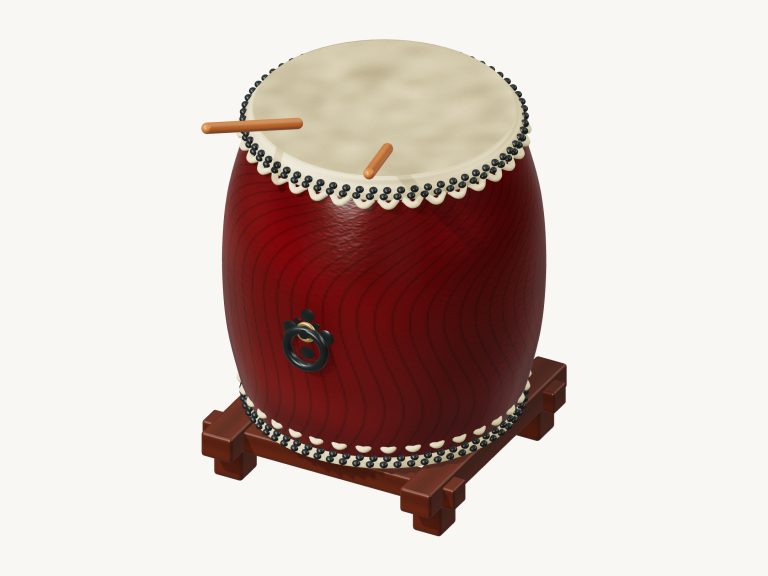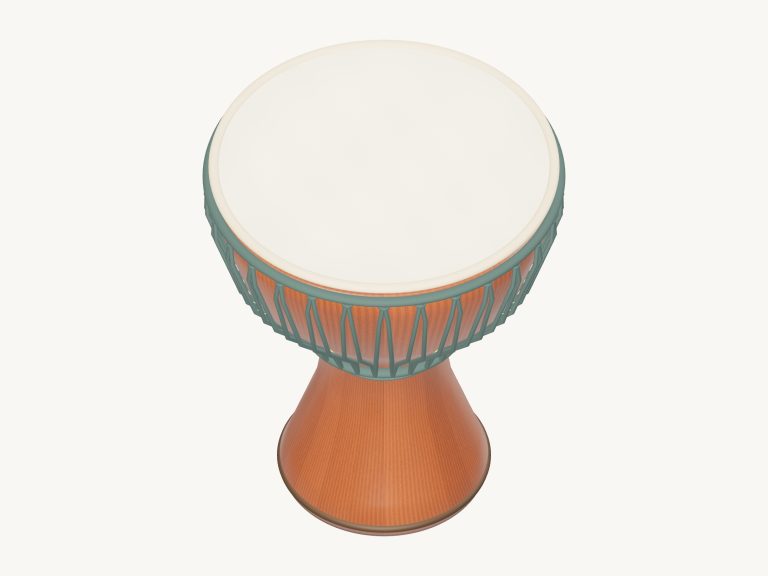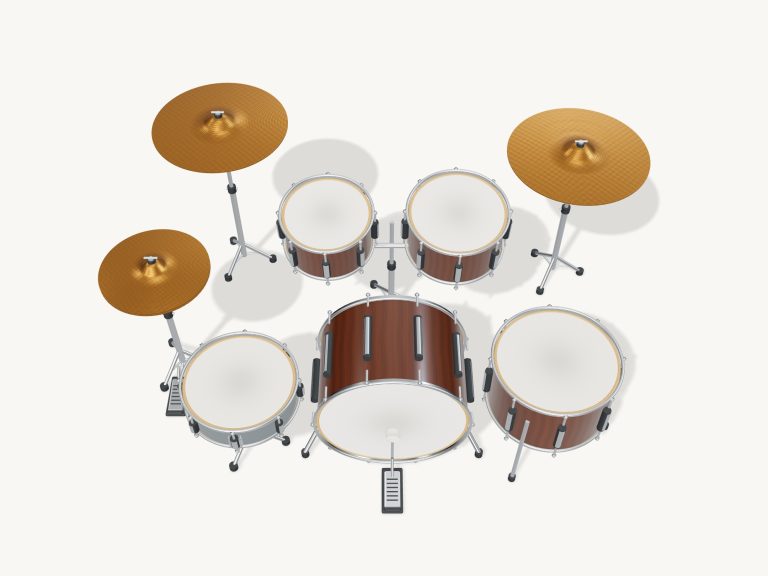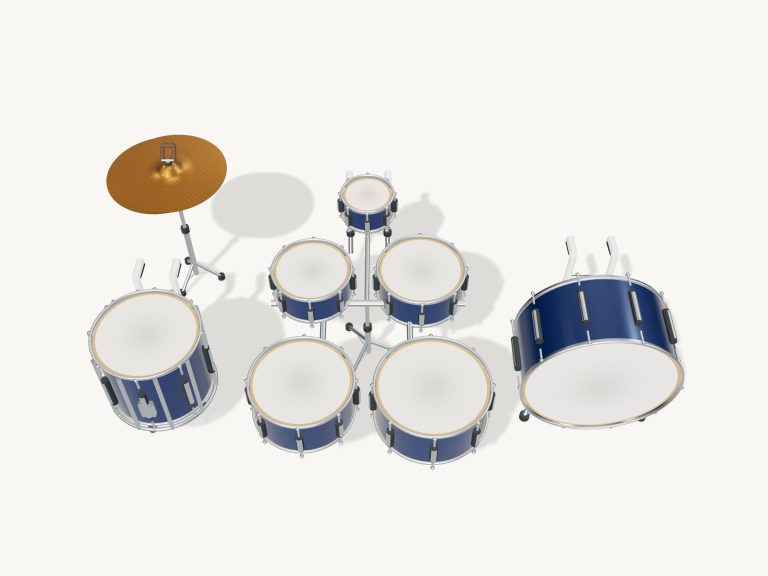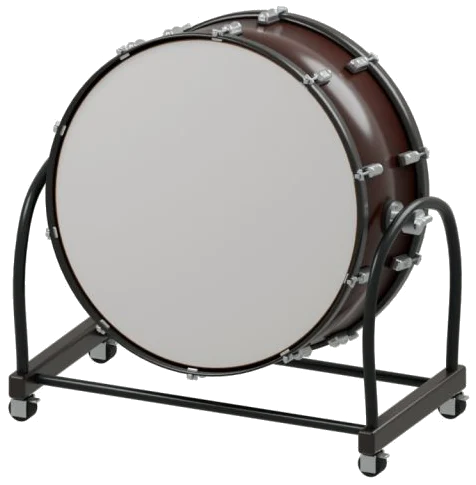
This online virtual instrument puts a concert bass drum right into your web browser. It has a deep resonant head, and there is no mistaking what it is: a detailed 3D model of a bass drum set in its own wooden cradle. Every time you strike it, a swing mallet made of felt hits the head. What you’re hearing isn’t synthesized but the actual recorded sounds of a bass drum being struck, the low boom and the long rolling ring that follows each stroke.
Tap on-screen pads, click the drum’s head, or press keys on your computer keyboard to play it. The drum has two sounds for you to experiment with: Soft and Hit. It includes a recorder that lets you save what you play as an audio file. It also has sound settings, a simple follow-along game, and three built-in practice rhythms.
How to Play the Online Bass Drum
“Preparing your instrument…” appears when you open the page and the sounds and model load. Tap or click on the large round head and this will play a full Hit once the drum has appeared. The audio will wake up with your first tap too so just tap again if you don’t hear anything from the very first stroke. You get a visual sense of timing as each hit causes the mallet to swing back towards the head.
Two very large pads marked Hit and Soft sits below the 3D view. Below each pad is the corresponding keyboard letter. They feel quick and responsive and fire as soon as you press them down. Full stroke (main) is called Hit. A quieter, gentler recorded stroke is called Soft.
When you use a stylus to play the pads, it register your pen pressure. The harder you press, the louder the note. It also cycles through multiple recorded takes of repeated strokes ensuring that the beat does not sound mechanical.
To play on a keyboard, click in the instrument to allow it to hear your keys then hit S for Soft and A for Hit. To stop what’s playing now, use Esc; to repeat the previous note, hit the Space bar. While the settings panel is up, it will ignore any keys being pressed so make sure to close it down first before starting to drum.
Tempo, Stop and Repeat are on the upper row of controls. Tempo begins at 85, and goes between 45-180 beats per minute. You can adjust it with the slider. The number will appear directly next to the slider so you know what speed you’re playing at.
Stop turns off the rhythm, any running games or repeats, and immediately stops the drum. Repeat plays whatever sound you just played back in a loop, two times a beat until you click Repeat again or push Stop.
Three patterns, Steady pulse, Call & answer, and Little roll, are shown as a rhythm menu below the pads. When you pick a pattern, the Tempo slider moves to its preset speed (85, 100, or 120 beats per minute). Then you can drag the slider if you want to go faster than slower. To hear the pattern play back in a loop, press Listen. As it plays back, the line beneath the menu indicates where you are in the pattern and what’s coming next. So you can hear the accents; it alternates between stronger and lighter strokes in the playback. To stop it, press Listen again or Stop.
Press the Game button when you’re ready to participate. A pad lights up to show which one you’ll use. The drum on screen will glow. A guide line indicates what step comes next and what to play. Hit the highlighted sound to continue the game; wrong strokes just sound and don’t move on. You can take each step as slowly as you want; there’s no score or timer. When you complete the pattern, it begins again.
The ☷ button in the top corner opens the Sound & play panel. Overall volume is controlled here. Strength determines the force with which the key and pad strike the drum. The Hit sound changes from the softer recorded strokes at lower settings to the harder ones at higher settings. The Room setting creates a sense of space around the drum, starting with a totally dry sound. Tone provides three options: Natural, Soft, and Bright. These alter the tone making it more crisp or warmer. Be aware that this Soft is a tone color not to be confused with the Soft pad. The quick help text is repeated in the panel. The × button closes it.
That’s the Record button, too, which is located in the same panel. Click it, close the panel, play, do what you need to do, then when you’re finished, open the panel back up and hit “Finish recording.” Your browser will download the resulting take as a file called my-bass-drum. Depending on your browser, that’ll be either an M4A or a WebM.
Click on Rotate 3D to view the model from different angles. The button becomes “3D · drag empty space”. Dragging in empty space turns the drum as you move. Pinch to zoom in or out. You can also scroll to zoom. At any point you can hit Reset view to go back to the original angle, or click Rotate 3D again to lock the view and return to the original angle.
There is also a Full screen button next to the ☷ button with an icon of four corners. This fills the screen with the instrument; press the button again or Esc to return to the page.
If you have time to start, pick one of these: play Steady pulse, drop the tempo slightly, and play it in Game mode until you get used to the switch from Soft to Hit. Next try Call & answer and see how much a gentle stroke contributes to a basic pattern on this online virtual bass drum.