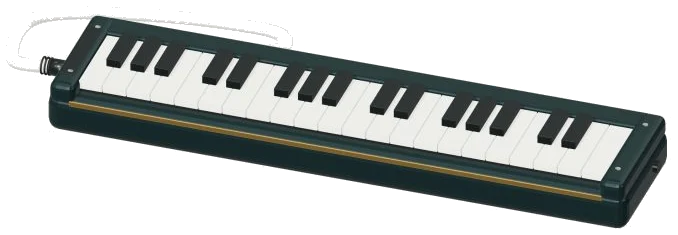
This online virtual melodica lets you play a bright melody. Just use a bit of breath and it will work in your browser. It’s not just a picture but a 3D model of an instrument that has 37 keys. They spans from F3 to F6.
You can zoom in and out and even turn the instrument round for a closer view. Each note is recorded using a Hohner melodica. It is not just a simple electronic tone.
How to Play the Online Melodica
Play on your computer keyboard, fingers if you have a tablet or phone, or even a mouse. No need to install or download anything. There’s no need to hunt around for the start button. As soon as you press a key it turns the sound on.
Once you’re all recorded and ready to go, a message will appear at the bottom of the screen that says, Recorded instrument sound. The question mark in the top corner opens a short guide together with the sound credits. It displays the credit for the sound too.
Underneath the model is a sort of piano style keyboard. According to the guide, “the 3D melodica has 37 keys that match the keyboard underneath. Touch or click on any of the 37 keys to play them. To make a note sound you tap it. To continue making that note you hold a key down. If you want a shorter note then just tap again.”
Alternatively, they say you can use the keys on the 3D model itself. These light up and dip down as you hit them.
In the middle of the page is a 3D model of a melodica in a frame. Click inside this to begin playing. The keyboard has 27 consecutive notes mapped to these computer keyboard letters: A W S E D F T G Y H U J K O L P; Z X C V B N M, and /. These run from C4 at A through the keys until they reach D6. Each key is a semitone higher than the previous. On-screen, you can see the letter that corresponds to each key. The remaining notes below C4 and above D6 is touched or played with the mouse.
In the CHORDS row, full three-note chords is played. They are: C, Dm, Em, F, G and Am. On the number keys from 1-6, the corresponding chords sound. This makes it easy to play a melody with one hand and add harmony with the other. With your right-hand, you can add harmony.
Under the model is a bar that indicates the last note or chord played. It is shown beside the word PLAYING. Press the Space bar or the Play button to play the note or chord you choose. As long as you keep your finger on it, it continues playing. Keep air keeps the breath going by itself. Tap another chord/key and it changes what’s sounding, but continues on. Glide around a tune without ever having to hold anything down. To stop, just tap Keep air again. Everything stops at once with the ■ Stop button or Esc key.
Breath strength is controlled by the Expression slider. This goes from 10 to 100. The higher number plays louder. If you are holding a note down and move the slider it changes straight away.
Tone is set using three presets. The default is natural. Gentle gives a mellower, darker tone with a little more room. Concert adds the biggest echo. These presets move the Room slider for you. Room slider adds the echo to a room. This goes from 0 to 50.
Overall level is set by the Volume slider in the bottom corner.
The PLAY A LITTLE menu lets you learn a tune. Pick Twinkle or Morning steps or Ode to Joy. Click ▶ Listen and the melodica will play it for you. It plays one note per beat. Click it again to stop early. The Tempo slider controls how fast. It ranges from 40 to 180. Stop what’s playing by choosing another tune.
When you’re ready to play along, you click ◇ Game mode. On the screen is a panel that says play the green note. On the keyboard and in 3D melodica, the next note turns green. There’s boxes that say NEXT and play now. They displays the next note plus a counter that shows your progress. They also show the letter for the note. Now it’s waiting for you in game mode. As soon as you press the correct note, it moves on. At the end it says Lovely. It asks Play it again? To leave the game, you click Game mode once. To start again, you click it again.
The Record button lets you record what you play directly on the instrument. There’s no need for a mic. While recording, the button says ■ Finish take. Click to complete. It will then show a Save take link where you can download your recording.
Scroll, Pinch Zoom: You can move around the virtual melodica in 3D by clicking ↻ Rotate 3D, dragging the background to turn the model, and scrolling or pinching to zoom. While doing so, the keys on the model continue playing. Click ⌂ to return to the front view. Turning off Rotate 3D has the same effect.
If you’re new to the melodica, you begin with the Natural preset. The keys are A, S, D, F and G which you play as C4, D4, E4, F4 and G4. Next you add the chords of C, F and G using the keys 1, 4 and 5. When you think you’re ready, you would of have a go at Twinkle in Game mode.