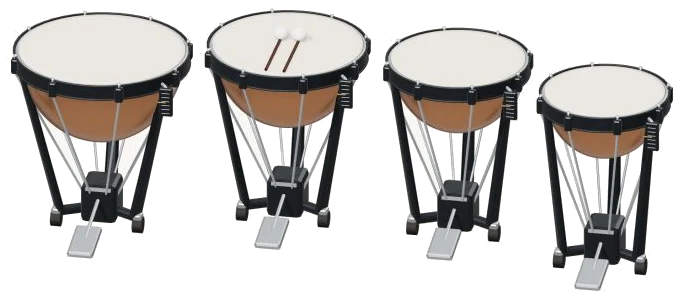
This online virtual timpani bring the sounds of four copper kettles into your browser. The drums you see on screen are a detailed 3D model that you can zoom and rotate. Tuned from low to high they are F2, B♭2, D3 and F3. Each sound you hear is a recording of an actual timpani rather than a synthesized tone.
It can be played using your computer keyboard, fingers on a tablet or phone or even just a mouse. No need for installation or download. There is no start button to find. Hit one of the drums and the sound turns on. When the recordings are available, the message below the widget updates: Let each strike ring. It becomes Recorded instrument sound.
How to Use the Online Timpani
Clicking the question mark in the upper right corner reveals the credits, as well as a brief guide to the widget. Below the model, the caption lists the 4 drum sizes (from biggest kettle to smallest). The sizes is 32″, 29″, 26″, and 23″.
On the 3D model, you can click the head of any of the drums to hit them, or just swipe across the heads to get a rapid fire shot through all the drums in turn. Each time you strike, it’s animated. It lights up the drum briefly and the head rippels. Then, one of the two felt mallets comes down and swings back up again before taking another turn. The largest drum (on the left) sounds the lowest note, while the smallest drum (on the right) sounds the highest.
There are four large pads below the model, each labeled with the note of one of the drums. Striking the pads will ring out each individual note; they don’t extend the length of time that you hold the pad down. The four drum notes are played left to right across the keyboard (A, S, D, F) on a computer keyboard. You can see which note is assigned to each pad. The timpani are in their own frame on the page. Click within this frame first, and then begin to play from the keyboard. PLAYING appears under the word and the drum you played last is shown under the bar.
That’s where the B♭2 begins. Hit that drum by hitting the Strike button (Space bar). Tap quickly for one stroke; hold down the button or Space bar for a roll that continues till you release the button. Use the Roll button to get the same effect without having to hold anything down. Click on any other drum whilst the button is on, and the roll transfers to them. To turn off everything hit the ■ Stop button (Esc key).
Real timpani control is provided via two sliders. The second is Tune drum, which retunes the drum you just played by up to three semitones up or down. You see the new note shown in the PLAYING display. The drum’s tuning pedal and pitch pointer will move on the 3D model. The first slider is called Roll speed where you set the speed of the roll from 3 to 16 strokes per second. A roll can be changed in the middle of playing and begins at 7.
Starting at 65, the Strike slider (in the bar) goes up to 100. This is your hardness of hit. It isn’t just about volume. There are three levels of dynamics on each drum. These are selected by the slider to give you a softer or harder version of that drums recording. On a high setting, it sounds like a really heavy strike. Also, two different versions of each level have been recorded. So each time you hit it doesn’t sound quite the same. Harder strokes makes the mallets travel further upwards.
There are three presets that define the overall character. Natural is the default. Gentle is softer with a darker tone and more room. Concert is hard hitting with the biggest echo. Each preset will move the Room and Strike sliders for you. The Room slider runs from 0-50 adding an echo of a room around the drums. At the bottom right the Volume slider is the overall level.
There are only three short rhythms (patterns) in the PLAY A LITTLE menu that are written out for the four drums: Thunder steps, Four-kettle march, and A quiet ceremony. Press ▶ Listen to hear one of them played for you. Adjust the tempo slider from 40 to 180 to slow it down or speed it up. Next, press ◇ Game mode to try playing it back yourself. The pads light up green with the drum you should use, as does the 3D model. The boxes labelled play now, NEXT, and THEN show you the next note to play and its key letter. Until you hit the correct drum with a pad, the model or its key and game mode pause while waiting for you. Then, they continue. There is also a progress bar and counter showing how well you’re doing. It finishes by asking Beautiful. Play it again? There is also an Again button to let you do just that.
You can record what you’ve been playing directly from the instrument without a microphone by using the ● Record button. When you’re finished, press ■ Finish take. You’ll then see a Save take link to download your recording.
To rotate the model of the drum and its pedals (look around), click ↻ Rotate 3D. Pinch on your trackpad or scroll up/down to zoom in/out, then drag the background to rotate. You can do all of this with the drums playing. To return to the front view press ⌂ or switch Rotate 3D off.
If you are unfamiliar with the online virtual timpani, begin with the Natural preset. Slowly play A, S, D and F allowing each drum to ring out before you move on to the next one. Try some of the Roll speed settings holding down the Space bar for a roll. Finally go into Game mode, set the tempo to slow and take it through Thunder steps. You should of tried it more.