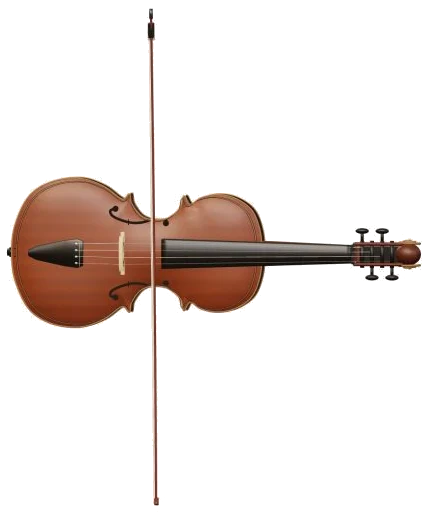
Play this online virtual viola. It is an online virtual version of a bowed viola you can play right now in your browser. There’s no need to download anything; no sign-up required. Just click the link, wait for the sound to be ready, and start playing.
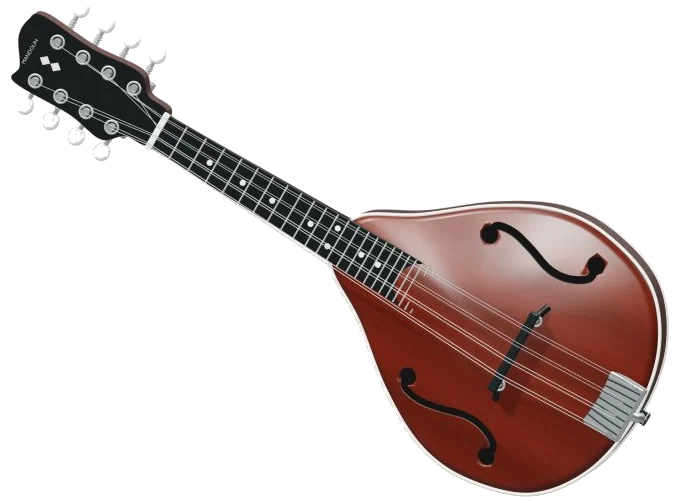
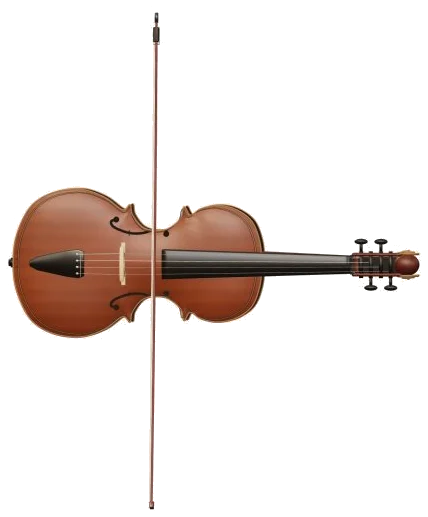
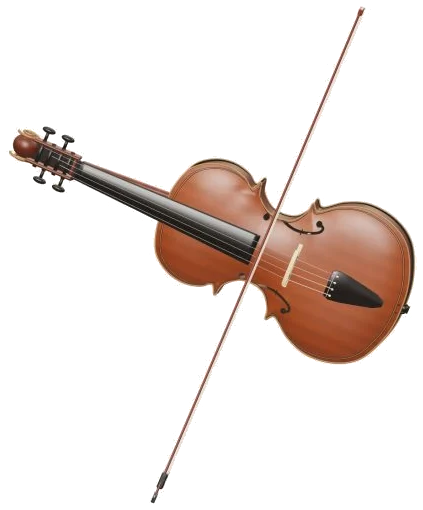
You’ll see 3D model of a viola onscreen; complete with scroll, bridge, open f-holes, carved plates and a moving bow when you play. Zoom in and out, and even rotate the instrument so you can get a closer look at its details. The model also features deeper ribs and a broader body different than a violin.
How to Use the Virtual Viola
Each note is produced by a recording of a real viola instead of a synthesizer. Play it with your computer keyboard, your fingers on your tablet or phone, or simply with your mouse.
There is no individual sound button. When you start to play a note the sound will switch on automatically and you’ll see Preparing sounds… followed by Sound ready in the bottom status line.
At the top, the question mark opens the help and sound credits, and the Full screen button gives the viola the whole screen. To exit full screen click Exit full screen again, or use the Esc key. In the bottom bar is the Volume slider.
Because it’s a bowed instrument, the viola plays notes that continue to sound while they’re held down. Pressing and holding one of the note pads below the 3D stage makes the bow continue to move until you release it. It has 37 pads in total, three complete octaves from C3 to C6, each semitone apart. Move from note to note by sliding your finger or mouse across the pads.
The note’s name will display in the stage’s bottom right-hand corner. Each pad is labelled with the key it will play on your computer keyboard. Starting at A W S E D F T G Y H U J K, the notes are in ascending semitones as if they were on a piano. Next are O, L, P, and the semi-colon. Then, the keys go along the bottom row from Z to the forward slash. Finally, the number row from 1 to 0 provides the highest note (C6).
Holding down a key holds the note. Pressing a second key while holding one will cause the viola to jump to the new note. Release the second key and the original note reappears. The chosen note sounds when you tap the Space bar. The viola sits in its own frame on the page, so click inside it once before you play from the keyboard. Once this is clicked into, you can begin playing from the keyboard.
To the right of the Auto bow button are four buttons marked with the letter ‘C’ and a number 3, then ‘G’, followed by ‘D’ and ‘A’. These correspond to the four open strings of the viola starting at the lowest (the C string) through to the highest (the A string), allowing you to instantly jump to each note.
A big help for long flowing phrases is the Auto bow button. One tap on any pad changes the pitch of the note without stopping the note or the movement of the bow when it’s on. Clicking Auto bow a second time switches it off. A guide line reminds you where to tap to change notes and to tap again to stop.
Expression is controlled by the Bow slider that sits underneath the pads. Pushing this up makes the sound brighter and louder whilst pushing it down makes the sound darker and softer. You can move it while a long note is playing to make the sound swell and fade.
Alternatively, you can actualy play the 3D viola too! Tap or click on any of the four strings to hear the open note. The bow will then tilt towards the string being played and move backwards and forwards as if it were bowed. The bow will change string to suit the note when you play from the pads instead. Playing the body of the instrument sounds the note in question.
Selecting a song from the menu at the top of the controls will teach you the melody. Online options for the virtual viola include Twinkle, Twinkle; Ode to Joy; and Morning steps. Hit the ▶ Play song button to listen, then hit that button again to stop/pause or continue playing. The Tempo slider adjusts speed (even during song play) from 50 to 150. The button with the arrow back-and-forth (↻) repeats the song. The square button (■) mutes everything.
Below the menu, the strip shows upcoming notes and the number of beats each note has. Click on ◇ Game when you’re ready to give it a go. The label turns into your turn. The next note glows amber, while the one you need glows green. Then the pad lights up with the note. Repeat notes are also included in this so every right note takes you further along. There’s a counter to show how far you’ve got. The guide line lets you know what green note to try if you get it wrong.
You’ll see Complete! You’ll see Complete! at the end. You can then choose to play again or select another song.
Click 3D to rotate and look around the viola. You can drag the background to turn and scroll to zoom, or use two fingers on a touchscreen. The ↺ button resets the view, and while Rotate is on, touches on the instrument continue to play.
If you are new to the viola, switch on Auto bow, press C3 to hear the deep open string sound then tap a few pads to change the pitch. Once you’re feeling confident do Ode to Joy or Twinkle, Twinkle in Game mode but at a more leisurely pace following the green pads as they arrive.