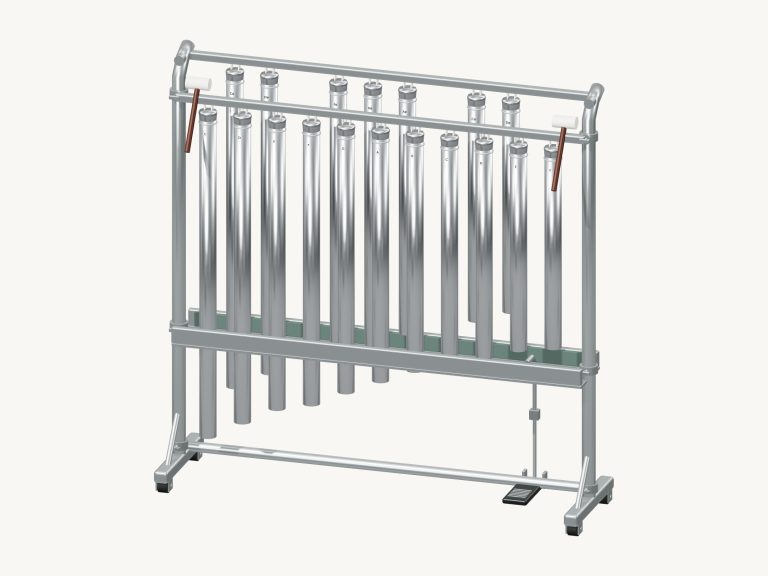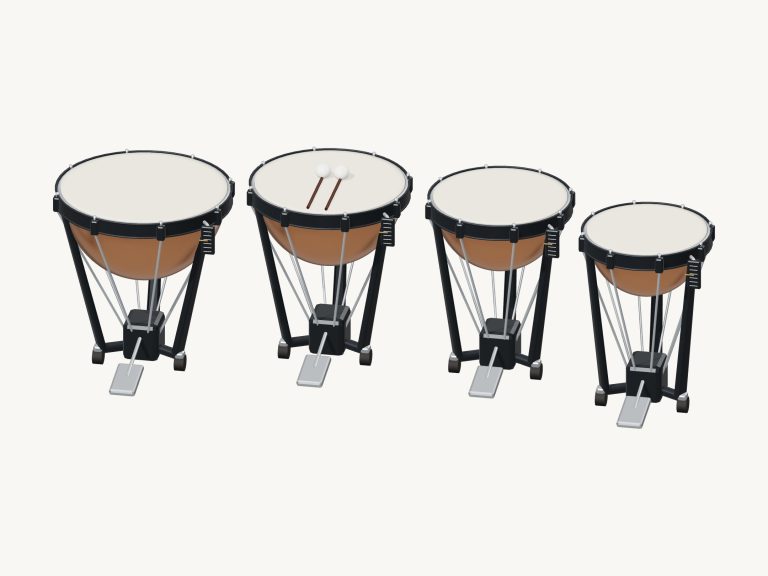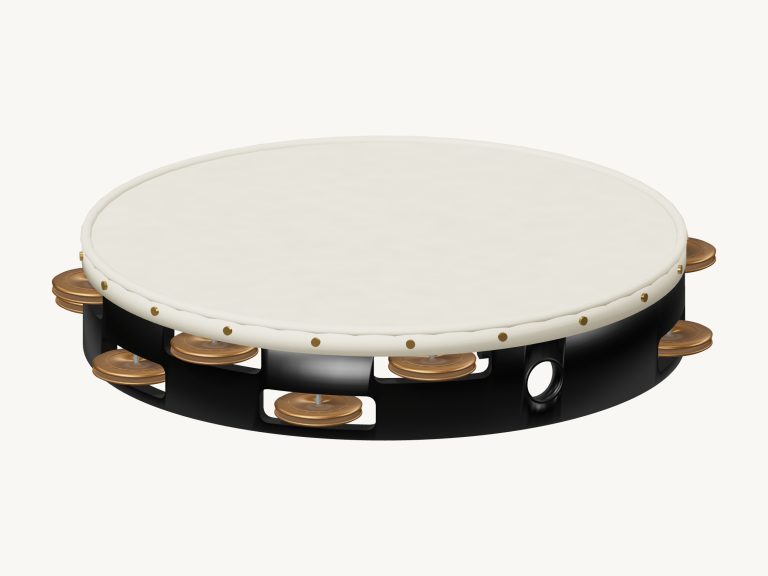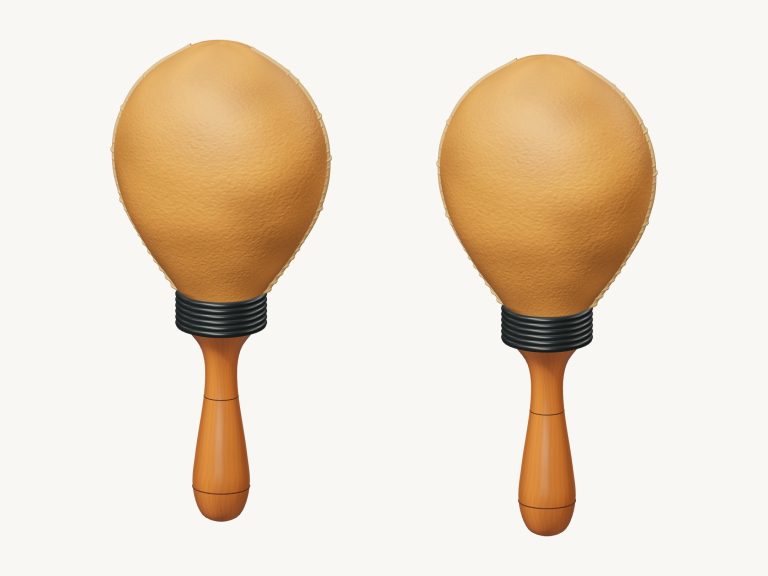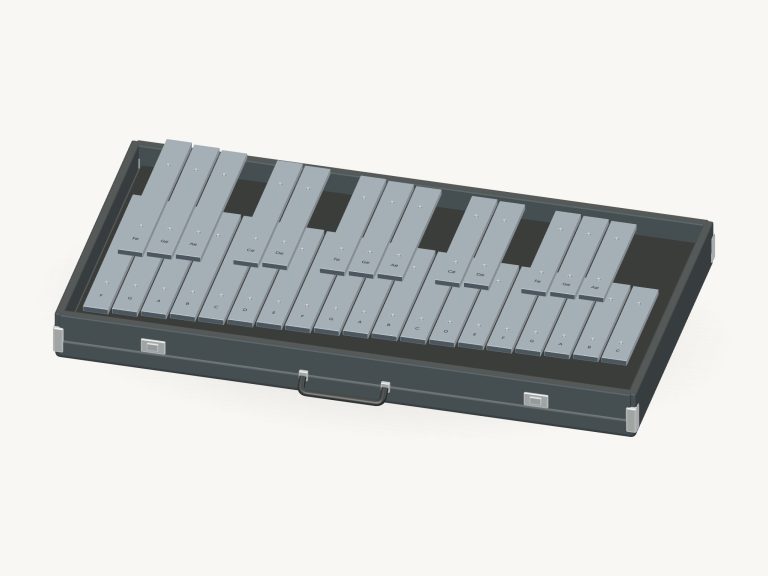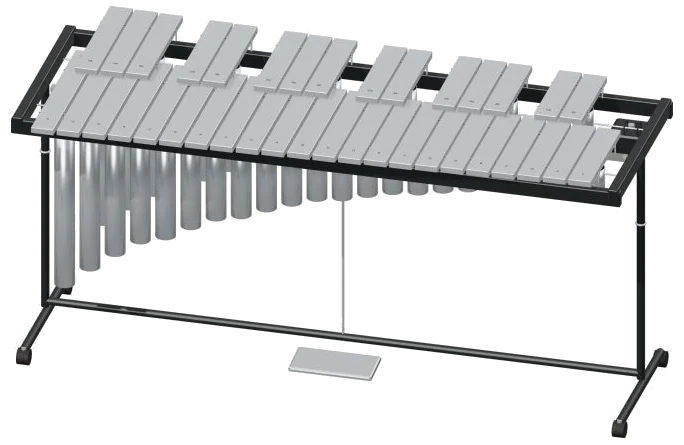
It’s an online virtual vibraphone that allows you to play silver bars with a shimmering voice directly in your browser. It features a detailed 3D model of a vibraphone complete with 37 bars (F3, F6) onscreen. This means you can zoom in and out of the model as well as rotate it.
The notes are not simply an electronic tone but a recording of a vibraphone. It can be played using your computer keyboard, your fingers if you have a tablet or phone, or even just a mouse. You do not need to install or download anything. You don’t have to look for a start button.
How to Play the Virtual Vibraphone
When you play a note, the sound turns on; once the recordings are ready, the text at the bottom of the widget updates to say Recorded instrument sound. Everything you need to control the sound can be found directly underneath the instrument. The top-right question mark reveals a brief guide and the credits.
To play a note simply click on the bar in the 3D vibraphone, or swipe over multiple bars for a rapid burst of notes. As each bar is sounded, it lights up. Tap on a bar for a short note, or hold it down and the note will ring out. There are 37 note pads beneath the model, one for each bar. These are labelled with the note’s name which can be more convenient when working on a smaller screen.
The 25 notes of F3, F5 are played on a computer keyboard using the following letters: A W S E D F T G Y H U J K O L P; Z X C V B N M. Every pad displays the letter that is played and each letter plays one semitone higher than the previous letter. The remaining notes up to F6 are played either by touch or with the mouse. Click inside the vibraphone frame once before beginning to play from the keyboard.
From the keyboard, numbers 1-6 play the chord buttons (C, Dm, Em, F, G and Am) which all produce a full three-note chord. With the sustain pedal pressed, you can allow one chord to blend into the next beautifully. Under the word PLAYING are the note or chord you played last which appears in the bar below.
To play that sound press the Play button (or the Space bar). It will continue playing until you let go of the button. If you want to keep it going by itself, then use the Hold sound button. While it’s playing, if you click on another chord or bar it replaces the previous one. To stop everything at the same time, use the ■ Stop button (Esc key).
How loud it plays is set with the Expression slider between 10 and 100. What makes this instrument unique is that it has two controls. The sustain pedal button clicks on and off. When it’s switched on, notes ring out when they’re released and gradually fade into silence. This allows you to layer chords and phrases over one another. If you switch it off, then all notes currently sounding will be immediately dampened.
The vibrato slider gives each note a subtle pulsing increase and decrease of volume. This control ranges from 0 (off) through to 8. Its starting point is set to 3, meaning the higher the number, the more rapidly the pulsing occurs. On the 3D model, you’ll notice that the fans within the resonators spin at the same rate as the vibrato control. This makes the effect not only audible but visible too.
The overall character is set by three presets; Natural (default), Gentle (darker tone, more room, softer playing) and Concert (biggest echo, strong touch). These each shift the Room and Expression sliders for you. The Room slider goes from 0-50 to add an echo of the room around the vibraphone. At the bottom right is the Volume slider that controls the overall level.
When you want to learn a tune, select one of them in the PLAY A LITTLE menu: Morning walk, Twinkle, Twinkle, or Ode to Joy. Tap the ▶ Listen button to listen to the vibraphone play it and then adjust the speed using the Tempo slider, between 40 and 180. Next tap the ◇ Game mode button. Boxes labeled play now, NEXT and THEN will show the next note, which glows green on the 3D bars and pads.
In game mode, you wait until you’ve played the right note, then it moves on as soon as you do. There’s a progress bar and a counter to show how far along you are. When you reach the end it says Beautiful. Play it again? An Again button lets you try again.
To capture your playing straight from the instrument (without needing a microphone)… Tap the ● Record button. When it says ■ Finish take, tap it again and tap the Save take link to download your recording.
Scroll or pinch on your device to zoom in/out and drag the background to rotate the model (turn it). First click ↻ Rotate 3D to be able to look around the virtual vibraphone online. While doing so the bars continue to play. Clicking ⌂ takes you back to the front view. Turn off Rotate 3D for the same result.
For beginners, use the Natural preset and set Vibrato to 3. Engage the Sustain pedal, press the number keys for the C,F and G chords, hold each one down slowly and enjoy the sound of their blend. In Game mode, try playing Twinkle, Twinkle at a slow speed.