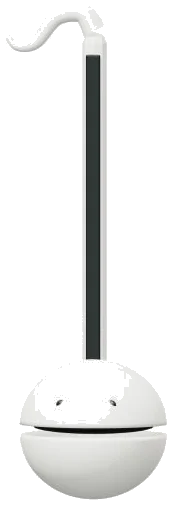
There’s an electronic otamatone you can play in your browser. The caption says it is an onscreen version of the real thing: a 3D model of the instrument with its expressive mouth and sliding stem. Zoom in, zoom out, turn it around and play it from any angle.
Squeeze the mouth open and the tone changes; slide up and down the stem and the pitch changes. Make it sing.” It works with your computer keyboard, with your fingers on your tablet or phone, or simply with a mouse. You do not need to install or download anything. No start button here.
How to Play the Otamatone
When you begin playing for the first time the sound comes alive and the words underneath the widget change to say Slide the stem. Once ready, open the mouth. Pressing the question mark in the top corner reveals the credits and a brief guide. Everything else is immediately below the instrument.
Playing it yourself on the 3D model is the most fun of all. When you press on the black strip running down the length of the stem, the otamatone begins to sound. Hold and slide up the stem to create a higher note, or down for a lower one. As you do so, the pitch slides smoothly across three octaves from C3 up to C6. You’ll see your note name follow you in the PLAYING display. Letting go ends the note.
This is very expressive as you glide freely around, but difficult to hit a specific note. That’s where the Snap to notes button comes into play. When turned on, this snaps the stem to the next closest exact note without gliding past all those other notes in-between. Turn it off to get your smooth slides back.
The other big trick of the otamatone is its mouth. Press down on the mouth in the 3D model and it will open wide. Release your finger and it closes back up. The same effect happens if you hold down the Shift key. If you have a wider mouth you get a more open, brighter tone. More muffling comes with the nearly closed mouth. Control this more closely using the Mouth · Shift slider below the playing bar. This sets the mouth between 0 to 100 and moves the jaw on the model accordingly.
Underneath that are 25 note pads ranging from C4 through to C6. If you prefer set notes then this is useful. Those notes can be played using the following keys on a computer keyboard: A W S E D F T G Y H U J K O L P; Z X C V B N M and. Each letter is a semi-tone higher than the previous one. You’ll notice the letter that corresponds with each pad displayed on the pad itself.
The otamatone sits in its own frame on the page. Before you begin to play from the keyboard tap within the otamatone. To sustain a note simply hold down a pad or key. For a shorter note just tap it. The otamatone will only sound one note at a time. So, as soon as another note begins it replaces the existing one. Underneath the word PLAYING is the note you just played. To play it again and keep it sounding forever, press the Play button or hit the Space bar while it’s held down. To keep the note sounding on its own, use Keep tone, and click another pad while it is on. When this happens, the new note takes over from the old one. To stop everything, hit the ■ Stop button or press the Esc key.
How loud the otamatone plays is controlled by the Expression slider which goes from 10 to 100. This will affect even a note you’re currently holding. The voice has three presets that change its character. Classic is the default. The Open mouth preset widens the mouth for a brighter sound. Soft voice nearly closes it for a gentler, softer tone. The Room slider is also set by each preset. This ranges from 0 to 50 to add a room echo around the sound. The overall level is set by the Volume slider at the bottom right.
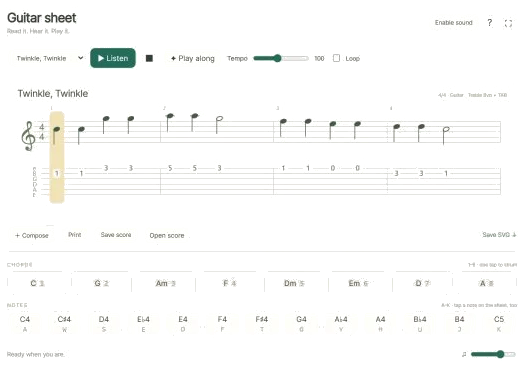
PLAY A LITTLE: Open this menu to learn a tune. Choose one of these: Morning walk, Twinkle, Twinkle or Ode to Joy. Tap ▶ Listen to hear the otamatone play it. Drag the Tempo slider (from 40 to 180) to adjust the speed.
Tap the ◇ Game mode button. Now the next note lights up green on the pads. Green marks the corresponding spot on the stem. Play NOW boxes indicate what comes next, followed by NEXT and THEN. Game mode waits for you to play the correct note. When you do, it continues. Your progress is shown in the progress bar and counter. When done, it asks whether you want to play it again. There’s an Again button.
The ● Record button records what you are playing directly from the instrument. No need for a mic. Tap it again once it says ■ Finish take. A Save take link pops up. Download your recording.
You can rotate in 3D by clicking ↻ to explore the virtual otamatone online. Use your mouse to drag the background, turning the model. Pinch or scroll to zoom in/out. Everything continues to work on the mouth/stem as you go. Click the ⌂ button to return to the front view. Turning 3D rotation off does the same thing.
Turn on Snap to notes if you’re a beginner at the online virtual otamatone. Each note is located by sliding up the stem slowly. Next, play Twinkle, Twinkle on the pads in Game mode. When comfortable with this, add Shift to the long notes. Your otamatone will really sing!