Enter the world of online guitar sequencing with this web-based tool that allows you to compose and perform riffs in your browser. Think of it as an online drum machine… Only instead of hits, you drop fret notes onto a six-string grid. Use your mouse or keyboard to quicky control and interact with the interface. The idea was to create something where one could easily sketch-out ideas without having to turn on recording software or grab a real instrument.
It’s a grid of notes that closely resembles regular guitar tablature for the main area. From top-to-bottom, this means the high E string is on top with the low E string at the bottom. It then loop back through 16 steps each time. You can choose the fret number from the palette directly underneath the grid to create your music. Highlighting a fret allows you to click on a cell within the grid to place that note there. Tap the cell and it’ll play the note and display the fret number in that cell. Click again on the same cell and it remove the note. That stamp-and-erase workflow makes it easy to compose a melody one step at a time.
How to Use the Online Guitar Sequencer
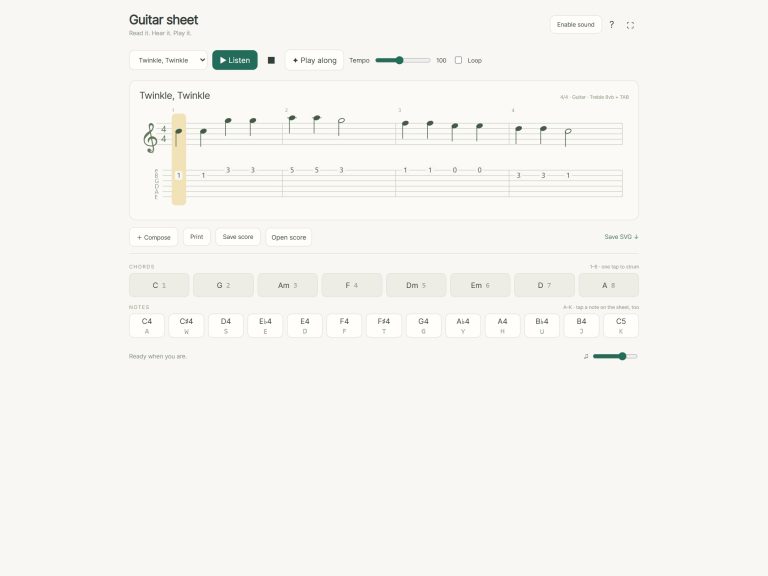
You can compose your song much faster using the chord stamps. From the button row below the grid choose a chord such as Am, D, G, C, or Em. Next, tap on any column in the grid. The whole column will be filled with the open-position voicing for that chord. It’s ideal if you want to create a harmonic foundation first than add lead lines later.
There is an option to use it as a power chord mode too. If this is selected, tapping a cell on the bottom string will stamp the root, fifth and octave notes in a moveable shape. Great for that thick rock sound in one click.
Below the palette are controls over how the track plays. The play button (or the space bar on your keyboard) starts the loop. There is a slider for Tempo which will adjust the speed of the loop from sixty to one hundred seventy beats per minute. This allows you to get the groove just right for your riff. There is another slider called Swing. This brings in some shuffle to the rhythm by offsetting every second step. This creates a rhythmic feel to the loop that suits rock or blues styles.
Just below the main grid, you’ll find another row, marked PM. This is the palm mute row. Click the cells of this row in turn to activate the palm muted version of each note. You’ll notice that when the palm mute option is switched on, the note plays but in a percussive, choked kind of way. It is good for adding texture to your riffing and driving rhythms out of a piece. Give this a try by turning palm mute on the off beats of a bass line to hear the change in feel.
Pressing one of the buttons labelled E-minor will load a preset pattern into the sequencer. In this case, it fills the grid with a pentatonic line running through the bottom strings. This is a useful exercise for getting an idea of how the sequencer deals with both rhythm and melody. Study the pattern and then clear it off and begin your own. The clear button wipes all settings and notes to leave a clean slate.
The Master Output Level controls the level of the master output. Set it comfortabley loud enough for where you listen. The Help Button turns the help panel on or off. This panel displays a list of keyboard shortcuts and detailed instructions. A quick way to toggle it is by pressing the ? key. Press the ? (question mark) key. This will bring up or hide the help panel. The Fullscreen Button enlarges the widget to fit your entire screen, providing more space so you can view the grid without anything in the way.
Try mixing chords and single notes. Place a melody on the top three strings and write out a bass line on the lower three. Loosen up any stiff rhythms by using the swing control. Add dynamics and make some space by muting every other step or two. Don’t worry about it being perfect as it’s meant to be a quick idea tool. Get it in your head, get it into the grid.
Start at fret zero and tap some of the cells to hear the open string sounds. Try playing power chords to get that thick guitar sound. Set your swing and tempo to make a good flowing loop then add more layers of these simple steps, you’ll be amazed at how complex you can make your part. Give it a go and let the tunes roll in.