This online chromatic tuner will verify pitch for you. Just plug your computer’s mic into it and it hears what you play and tells you which note(s) are closest to perfect pitch. The tuner is chromatic; that means it find the closest of the twelve notes in whatever octave you’re playing.
The interface shows a 3D model of real-world tuner, including buttons, speaker grille, LCD screen, and even a folding stand. You can spin the model around for a better view. No need to install anything; it all works right in your browser.
How to Use the Online Tuner
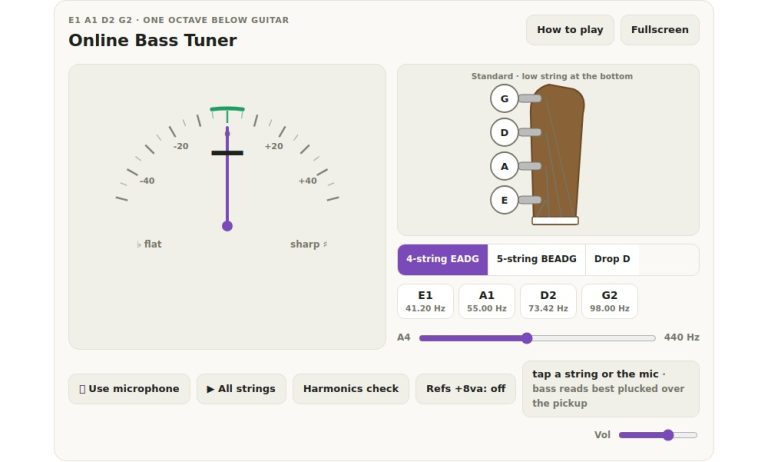
When the model has loaded, the status line ask to begin playing a reference tone or use the mic. Click Start microphone, which prompts your browser to request permission (select Allow). While it’s waiting for you to make this choice, the status says Allow microphone access… with a button beside that says Cancel microphone. When it starts listening, the button turn to Stop microphone. The question mark at the top of the widget bring up a guide. Stop all shuts off audio. Full screen expands the tuner. Pressing Esc or clicking Exit full screen return the widget to its original size.
Switching on the mic and playing a single clear note held for a few seconds allow it to stabilize. Below is the frequency of the note in Hertz, followed by how far out of tune it is in cents. Above that is the note closest to yours (e.g., C♯3 or A4), along with the octave. A needle points to where your note lies on the meter which range from −50 towards the left (flat) through 0 (in tune) to +50 (sharp). Next comes the message beneath the meter: “Flat • raise pitch” indicates that your note is below target; “Sharp • lower pitch” means it’s above. The message will say “In tune” and turn green when you’re within ±3 cents of the target.
If the tuner can’t hear a note, it requests that you play a single, sustained note. It tunes a single note; it will not be able to tune a chord. Play only one note at a time. It does detect pitches between 40… 1500 Hz. You want a quiet room to help with a steady reading.
The status line show that the microphone is on and listening but no audio ever leaves your device while it is on. Nothing is ever uploaded or recorded. All analysis happen right there on your device.
The concert pitch for everything it measures is set in the A4 box. This defaults to 440 Hz and you may change this to any whole number between 430 and 450 Hz if you prefer to use a different reference.
For those who like to tune by ear, there’s the reference tone. Select a note from the Reference menu, which runs from C to B and starts on A, and an octave from 2 to 6, then click ▶ Tone. Depending on what you set for A4, the tuner will play a sine wave of the selected pitch, and the button label will change to ■ Tone allowing you to turn off the tone. While playing, you may adjust the octave or note and the tone will follow. It doesn’t measure itself; listening just pauses while it sounds. The Volume slider control how loud the reference tones is. They don’t require microphone access.
But the 3D tuner isn’t decoration. When you’re not using it, it display your current A4 setting. When you are using it, it matches the displayed note with its frequency and includes a little cents bar beside it. Its LCD screen reflect those numbers too. Four buttons let you play the reference tone, increase/decrease the A4 setting in single-hertz increments, and turn the mic on/off. (It’s not a hardware emulator of any brand, the guide notes.) Dragging the background around lets you look at things from different angles: Click Rotate 3D, then click Front view to go back to where you started.
When you stop all or Stop microphone, hide the page, switch apps, or click outside the tuner, the online tuner will stop; just tap Start microphone again to resume.
If the tuner can’t find a microphone, it will ask you to connect one or use a reference tone. If your browser blocks the microphone, the tuner will tell you to allow it and try again.
Begin by listening to the reference tone, which is an A note in octave 4. Then, turn on the mic and play your note or string. Turn it up slowly until it goes green and says In Tune.
You should of tried it sooner. It works naturaly well. I didnt recieve any error. It is more better than old versions. The luxurios interface is great. It’s so comfortabley to use. The view is different than before. It is based off physics.