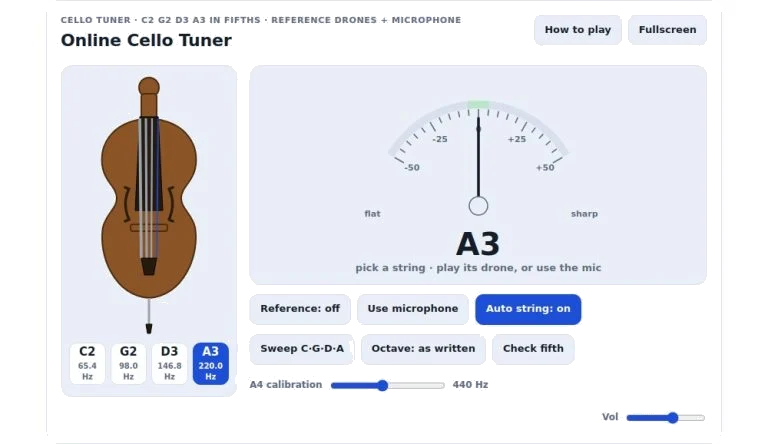
There are two options for tuning your cello on this website. You can either follow a drone and play along by ear, or let your computer microphone picks up the notes from your instrument in real-time. Keyboard shortcuts and mouse clicks is supported in interface, whichever you find suits your working method.
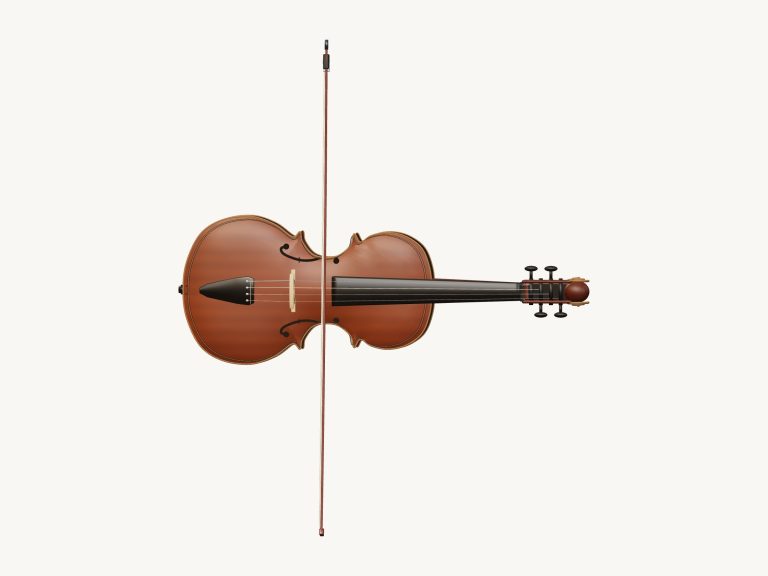
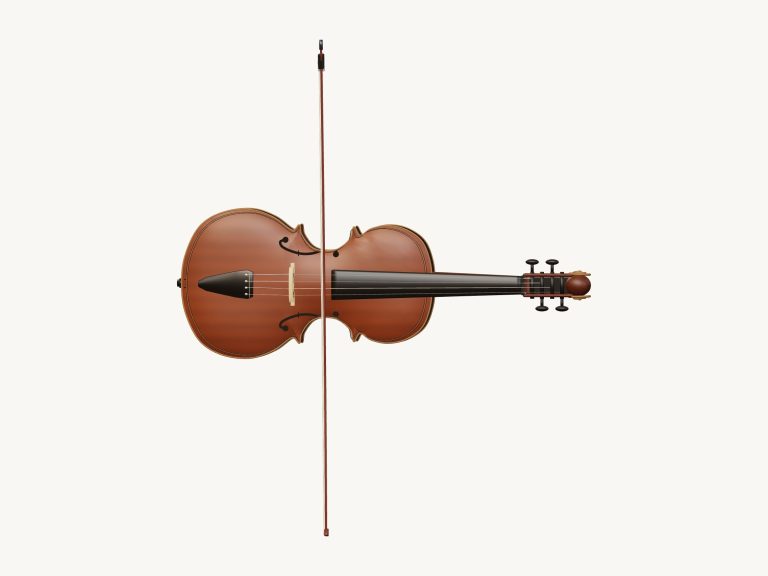
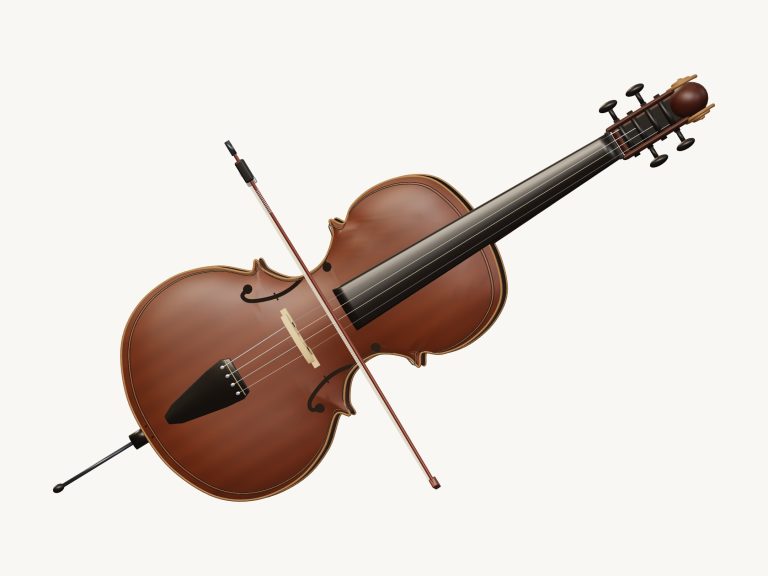
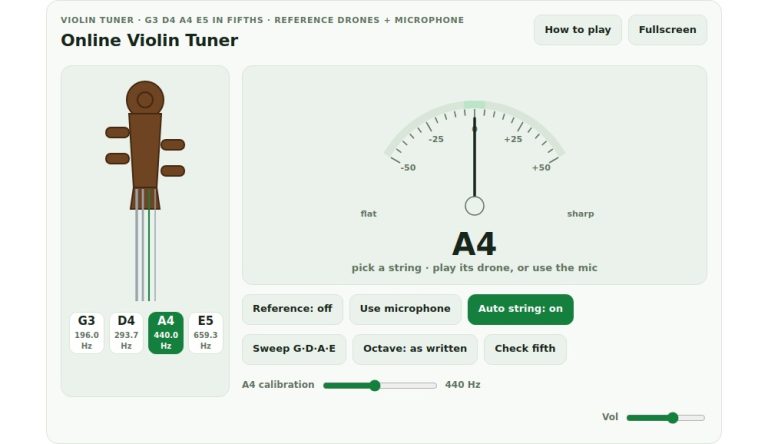
To change string click one of the labelled button marked C2, G2, D3 or A3. Alternatively hit the corresponding key numbers (1-4) on your computer’s keyboard to toggle between strings at any time. Number 1 correspond to the C2 string, and number 4 the A3. Once you’ve chosen a string it will be highlighted on diagram of cello and you’ll see the desired frequency shown. The big note indicate the current active string.
How to Tune Your Cello
You can also select a reference mode so that you will be able to compare with a pure tone. To turn the reference on or off, press the Reference button or type letter R from your computer keyboard. If you leave the reference on, you’ll hear a constant drone sound on the string you’ve chosen. With the reference turned off, when you change strings the tone will play for just a moment. So, you can quickly listen to make sure it’s at the right pitch before beginning to play. Leave the reference on as you tweak your pegs, listening to how the beating slows down and then stops.
The microphone mode is good if you like some visual feedback. Press M or click on Use microphone button to activate this. You’ll be asked to give browser access to your microphone. Once enabled, the needle on the gauge will move according to how far away from the target pitch you’re tuning. Right = sharp and left = flat. The middle green area represent within 5 cents of the target. For the cleanest readout, hold the bow at bridge and then just gently bow.
Alternatively, toggle between strings with the Auto String option (activated by default) turned on so it will chooses the closest string. If you wish to tune a particular string yourself, hit the A key to disable that setting.
You have other options for various tuning situations.
• Calibration slider (A4: 435… 446Hz): If you’re tuning alongside another group who has adopted different standard pitch, slide this up or down accordingly.
The volume slider adjust the level of the reference drones. The octave button raise the reference tones an octave higher. This may come in handy if you’re using laptop speakers as the low C2 isn’t always easy to hear. Instead, tune your instrument to C3 then match the octave by ear.
The sweep button play each of the four strings in turn. Use this to quickly run through all the strings without using any other buttons just before a performance. The C/G/D/A auto-scan button automatically cycles through these four notes on their respective strings. It is a handy quick check before performing.
The fifth button pluck the chosen string plus its neighbor. Perfect if you want to tune in pure fifths. Simply adjust until the beating slows down and stops. That means that the intervals between your strings is pure.
The Help button, or the question mark icon, brings up a complete help panel. The best practice is to tune the reference drone at A3 and then all others on fifths. Check each fifth using the check fifth feature. Adjust pegs accordingly when you hear roughness until the interval sounds smooth. Remember, your ear is the ultimate guide even with the microphone mode used for final tweaking.
The widget switches to dark mode automatically if that is your system preference. Click on the button to go into full screen mode if you prefer a bigger view of the gauge. It’s a quick and easy-to-use tool. No software installation is required. It runs on any moddern browser.
Remember: if you use the microphone, keep your practice room quiet. The pitch detection can get confused by background noise. Reference drones are clear and steady. Train your ear with them.
The interface responds quickly to your input. Switch between the methods as necessary. Try both to see what helps you tune more accuratey.
When you’re ready, begin to tune: Choose a string, play the drone and then listen carefully. Don’t break any strings! Go slow. The visual gauge gives instant results. Regular audio drones as a reference point. Use them together for confidence. You’ll have a balanced, in-tune sounding cello. Have fun fine-tuning it.