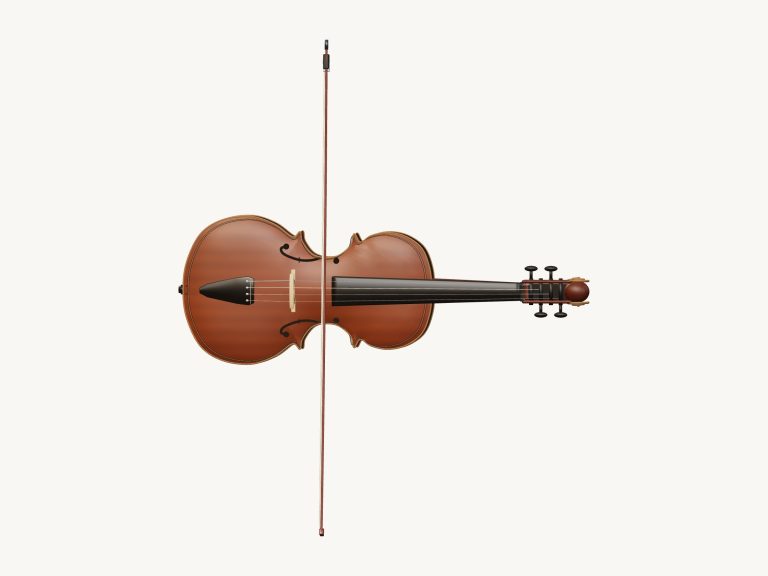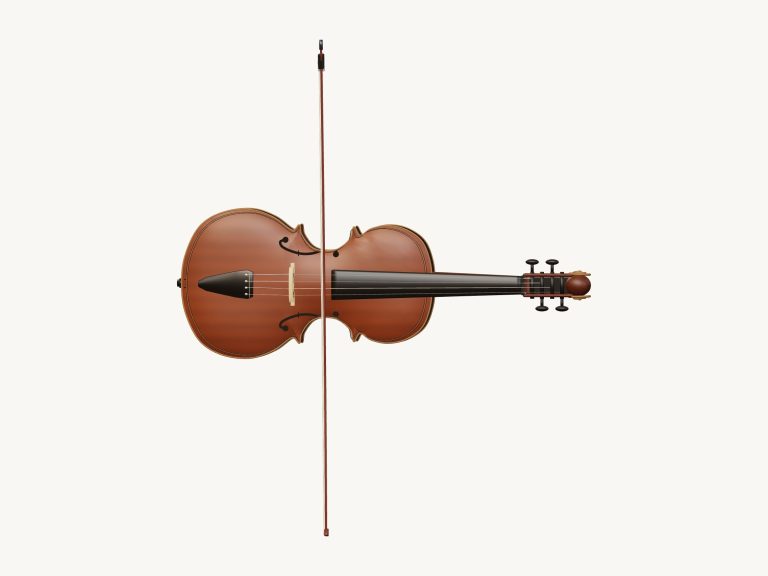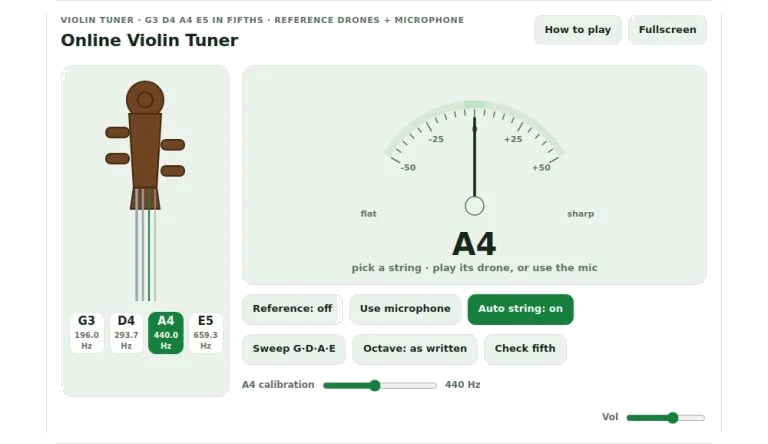
There are two approach available with this online violin tuner. One is a reference drone against which you can tune by ear; the other has the mic turned on to pick up the note in real time. Keyboard shortcuts and mouse clicks will work on interface, take your choice according to how you work.
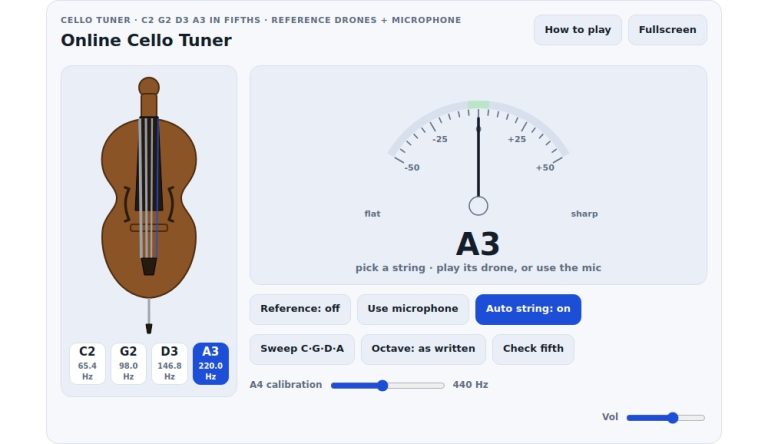
First choose the string you want to tune. Below the image of the scroll you’ll see four button marked G3, D4, A4 and E5. Click any button and the string will highlight and that note becomes your reference point. Alternatively, simply press the number key on your computer keyboard to quickly select the string you want: G = 1; D = 2; A = 3; E = 4. That way you don’t have to keep moving your mouse if you’re using it to adjust a peg while typing with other hand.
How to Use the Online Violin Tuner
This is a reference drone. This is where the main drone comes into play. Clicking on any of the strings will sound out a continuous note at that frequency when the Reference button are turned on. Tune your string by bowing it against the note and moving the pegs around until you no longer hear a beating sound. If there’s lots of background noise, or you don’t have access to your microphone, this is a good way to go about it.
The Reference button (or the R key) will turn the reference drone on and off. Occasionally, the reference pitch might be too low for your speakers to pick up clearly. In these cases, press the Octave button (or press the O key), which will raise all the reference pitches by an octave.
For a quicker work flow try using the Sweep function. What this does is it enables the online tuner to play through the four strings one after another so that you can quickly verify every pitch without having to begin playing. To activate Sweep, press the Sweep button or hit the S key. The tuner will sound out each of the strings (G, > D, > A, > E) with just a momentary pause on each. If you wish to halt the sweep, simply press the button once more. This is really handy if you want to quickly double-check your strings before performing. It saves you from having to tune them all separately by ear.
If you want auto-detection then switch to microphone mode. To do this press the M key or click Use microphone. This gives the browser access to audio input from your device. When it’s turned on, the gauge needle responds to the sound of violin coming through your microphone. The gauge indicates how far away you are in terms of cents. It also displays the detected note. Is it sharp? Then the needle moves right. Flat? Then it moves left. Green means you’re within five cents of mark.
For extra help, you can leave Auto string engaged so that the tuner knows which string you’re playing without having to select it yourself. Turn it off with the A key, and the tuner will only compare to the string you’ve manually chosen. This is useful for times when you don’t want any background noise interfering as you tune one particular string.
The final parameter is the base frequency (A4), which is set by the A4 calibration slider below the widget. You can vary this from 435 (446 hertz to fine-tune it). For instance, use this if you play with an orchestra that has a different standard pitch, or if you’re tuning to a slightly flat piano. To alter the setting, simply drag the slider left-right as required and the corresponding string frequencies will be updated. Beside the slider is present value so you can follow what’s changing.
A helpful addition on the tuner is a volume control for how loudly the reference drone plays. That way you can turn it up if the tuning note is too soft to hear through background sounds or down if it’s too loud for your ears.
Check the fifth one. With the Check fifth button, you can sound a pair of adjacent strings together. It assists you in checking whether you have a true fifth or not. If the combined tone sounds smooth and doesn’t waver with any beats then the fifth is pure. Toggle with the F key.
If you’re new and want a handy reminder of what the keyboard shortcuts do, leave the help panel on screen. You can turn it on by pressing the question mark key or the Help button. This includes an explanation of how to tune the instrument along with a list of commands. When you feel more confident with the controls, hide the panel to get a cleaner look.
Always tune up to the pitch. For example, if it is flat, just tighten the peg till you go slightly sharp and then ease back down to the right note. That way, the string won’t slip back flat. You should of tightened it more.
First of all, tune your A string followed by D against A, G against D, finally E. Now you can begin to play in confidence. Actualy, you can start playing immediately.