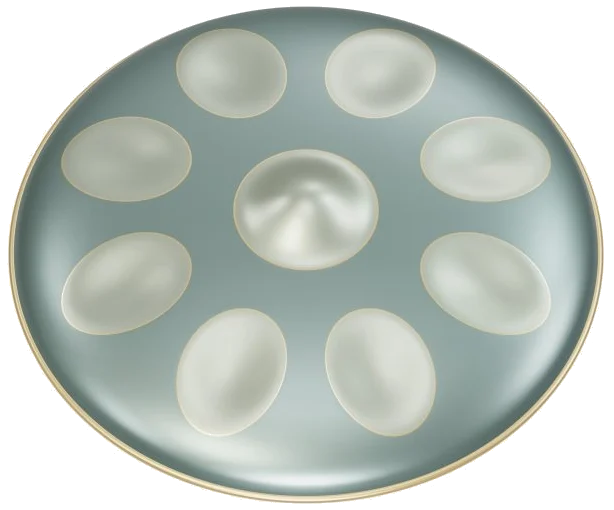
A Virtual Handpan allows you to hear the handpans bell-like tones right in your browser. It use an instrument modeled in 3D that you can zoom in on and turn around as you like. Each note is derived from 27 actual recordings of a handpan tuned to D minor. No synthesizers here, just the real thing. Play it using your computer keyboard, your fingers if you’re using a tablet or phone, or even a mouse. You don’t need to install or download anything.
Enable sound first by tapping the button at the top of the widget. It will count up and say Sound on once the recordings are loaded. If you tap on one of the notes beforehand it will begin to load as well.
How to Use the Virtual Handpan
Next to the sound button is a round record button. There is a question mark that opens credits and help. There is also a Fullscreen button which displays the handpan full screen. Exit fullscreen by clicking the same button again or pressing Esc.
There is nine notes in all. Starting on the side closest to you there’s a raised dome in the center called the ding. This is the lowest note: A3. From here there are eight fields of notes arranged in a zig-zag up around the ding. First we have E4 and D4; next G4 and F4; A4 and B♭4; and lastly C5 and D5. As the notes ascend, they alternate between right and left so it’s simple enough for both hands to take turns. Each field is labelled with the name of the note and lights up when played. You can use more than one finger at a time and if you slide your finger from one field into another it will sound the new note.
The Notes row is repeated below the pan with the nine notes as pads starting at A3 through to D5. Each pad displays the key which plays it. From the keyboard of your computer, the nine notes are played from bottom to top by pressing the keys A, S, D, F, G, H, J, K and L. Therefore, the ding is A and the top note (D5) is L. You have to click within the widget first before playing from the keyboard as the handpan has its own frame on the page.
On the Harmonies row you can sound a complete chord and allow it to ring. These include Dm, F, Gm, Am, B♭, and C. You will also find that the number keys 1 to 6 plays these chords from the keyboard. The harmonies use the same recordings as the single notes, but you strike three notes of the pan at the same time.
Pressing Space bar or Roll button will maintain a light roll on the last selected note or harmony. At normal speed this is four strikes a second. You can select other notes while it’s playing by clicking on them and the roll will follow. To stop the roll either click the button again or press Space. The square stop button (Esc key) stops all at once. The speed slider goes from 0.5× to 2× and adjusts song tempo as well as rolls.
The sound preset menu includes Spacious, Natural ring, and Soft touch. These presets change the volume and room ambience. Spacious is the loudest with the most room sound added, Natural ring is the default and is balanced, while Soft touch is the gentlest. The Volume slider is an overall level control located at the bottom of the widget.
Open the Song menu and select one of: First ripples; Moon garden; River dance; Starlight; Quiet harmonies. These are all original practice patterns. Quiet harmonies uses harmony pads instead of single notes. Click Listen to hear the tune played back to you. As each note is sounded it glows on the pan. The guide shows the next three notes, the current note and a counter. When finished it says FINISHED and encourages you to try Play along.
The beginner game is Play along. The note or harmony you need to play has a green target on it, and once played the next target appears immediately. You can therefore go at your own pace. If the same note occurs twice in a row it will say AGAIN. If you look ahead, the Then line shows the next three notes. While the game is running, the notes that aren’t the target don’t get sounded. At the end of a tune, LOVELY appears. To stop at any time click End game.
The round record button lets you capture what you’ve just played directly from the instrument. No microphone required. Click it again to stop, and a Save recording link will appear so you can keep your take. The audio is saved locally in your browser.
Explore 3D allows you to get a sense of what the instrument looks like by clicking the button. Scroll up and down to zoom in or out. Drag outside the notes to rotate (pan). When you’re done exploring, click Front view to return to the normal angle. You can continue playing all the pads and note fields as you explore.
These FreePats Hang D minor (CC0) recordings are courtesy of Mar, recorded by Gonzalo and Roberto, and processed by Roberto. There are 3 alternate takes per note, no pitch-shifted substitute notes, and the gain and tails are edited for browser playback.
To get started with the online virtual handpan, select Soft touch preset and play through the nine notes, slowly, from A to L. Select First ripples, then click Listen and try it out for yourself with Play along.