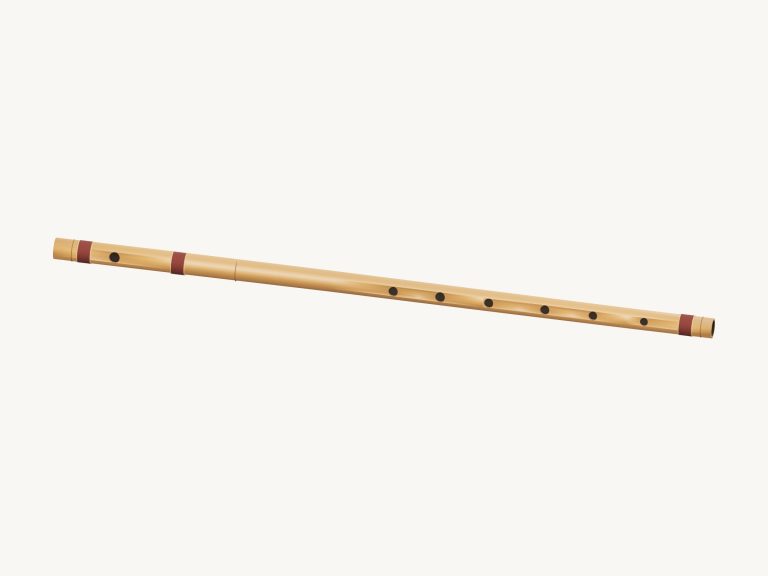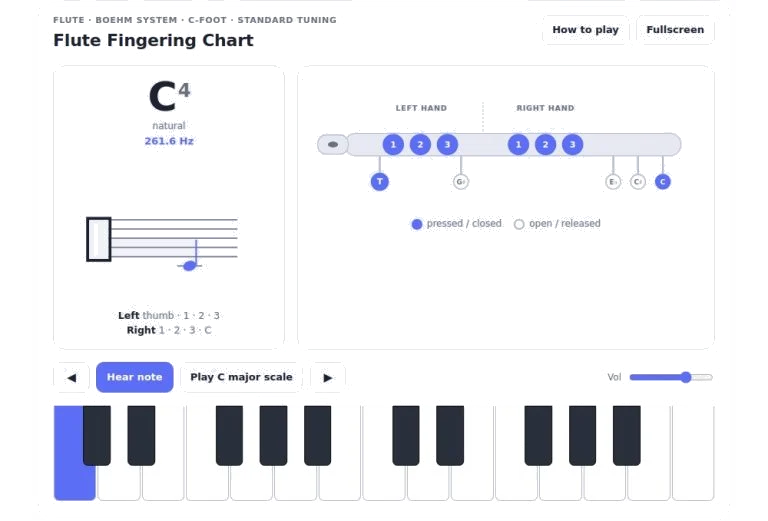
This is the Boehm System fingering chart. The below interactive chart display and plays through the standard Boehm system fingering for notes starting on middle C and going up two octave above that note. To move around the flute simply click using your mouse or touch screen (for those of you who like quick control, also available via keyboard).
As well as seeing the diagram of where to place your fingers, there’s also the music notation in front of you and an accompanying sound. This makes it easy to learn how each pattern sounds and feels before getting out your flute.
How to Use the Flute Chart
To begin, choose your note from the piano-like keyboard found at the bottom of the widget. Simply click on whichever key you wish to play and it will immediately change display. The big note name in the top left-hand corner of the screen changes to reflect the note chosen along with its octave number and pitch. To the right of this is exact frequency of the note given in Hertz for reference purposes.
Beneath this you can see how the note appear in staff notation with the note placed accordingly on the treble clef. Ledger lines are added as necessary for notes in higher ranges. This visual feedback provide you with a chance to relate the abstract idea of the note name to its actual position on musical stave.
As you can see above, this right-hand section is the main feature. It is a top-down diagram of the flute with each key numbered and labelled. Colour-coding in the diagram indicates which keys needs pressing down to play the indicated note. These are shown in colour. Outlined keys are unpressed (open) keys.
You’ll also notice that the diagram separates the right- and left-hand positions so you immediately know which fingers go where. On this flute, the right pinky controls the foot joint low C/C sharp keys plus the E flat lever at the bottom of the flute, while the left thumb control the B key at the back of the flute. The colour-coding gives you a clear instant visual clue about where to place your fingers.
By clicking on the diagram of the flute or on the note name above it (the big one), you will cause the player to play the note again. Alternatively, you can click on the Hear note button at the centre of the transport bar to listen to current note. What you hear is a synthesised version of what you would expect to hear if someone played the note on an instrument called a flute. So you can check you have imagined the correct frequency.
If the default volume is too high for where you work, then use the volume slider at the far right of the transport bar. This controls the volume of all the sounds produced by this widget. This way, you can keep an eye on it even when listening to different notes.
The play button is flanked by arrow buttons that let you step up or down the scale by a single semitone, making it easy and fast to navigate from one note to another. For keyboard players who like shortcuts, you can hit the left and right arrow keys on your computer keyboard instead. If you want to keep your eyes on the fingering chart while you’re auditioning scales and intervals, use the Enter or Space key. This will replay the currently selected note without changing your position in the sequence.
Pressing the question mark key opens a summary panel with more information about how the instrument work. It is a toggle, so just press the same key again when you don’t need it anymore.
If you want to practice this more methodically then press the play C major scale button which will run through the entire diatonic scale. You can see how the fingering changes in a given hand depending on where it is placed up and down the register notably at the octave divide between the first and second registers. The widget flags these unexpected fingering variations, such as using the thumb for a high B or the specific grouping for G sharp. These variations is crucial to ensure smooth articulation and correct intonation when playing the actual instrument.
If you wish to ignore everything else and just concentrate on the chart, there’s fullscreen mode. This could of been really handy if you have a tablet positioned next to your music stand that you practice from at a distance. To go into fullscreen, hit the F key on your computer keyboard or click the Fullscreen button. It switches to full screen mode with all controls still active. It also maximises the size of the notation staff and flute diagram. The interface cleans up nicely in fullscreen mode.
It is also worth considering the difference in octaves. Even though the fingerings look similar from note to note (D-E), they actualy change your embouchure and air support on the flute. On the chart, I have simplified it to only show the state of the keys. However, you will also hear the difference in pitch if you listen to the change in frequency.
To try another challenge quickly hit a couple of keys together and experiment with playing arpeggios or even chords. You’ll then be able to hear the interval sounds together.
So feel free to begin your flute range exploration today. It’s a helpful widget. Students can use it to double-check their fingering charts, and seasoned professionals can use it to refresh their memory about rarer notes.