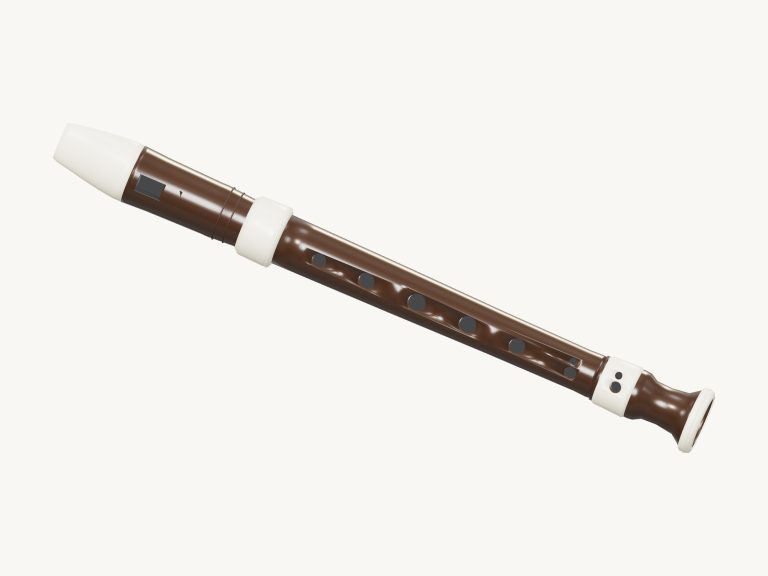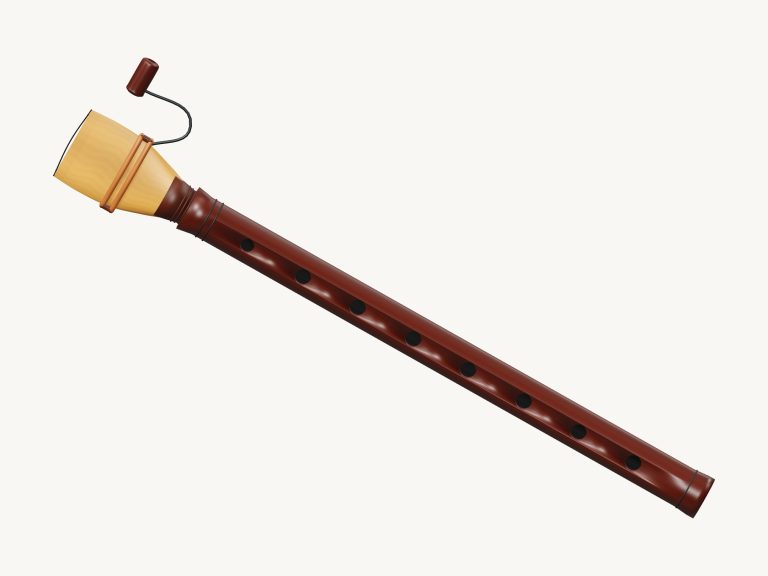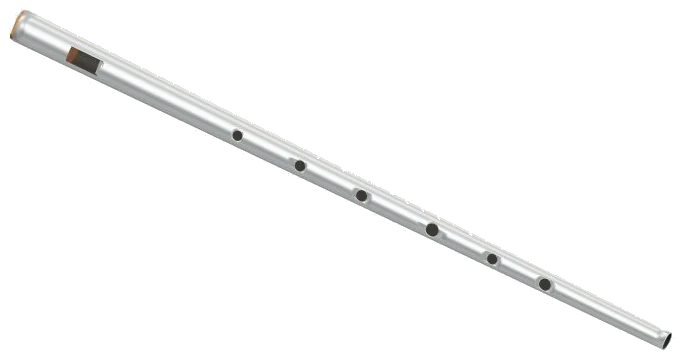
This is a virtual tin whistle (six-hole D) that you can play right in your browser. It’s a 3D model of a conical metal whistle with a wooden fipple plug; you can turn it and zoom in on it. When you play each note, you’re hearing a recording of an actual tin whistle, not some synthesised sound. To play it, you can use your computer keyboard, touch your tablet or phone, or simply move your mouse around to control it.
There are no plugins, account or microphone require. The sound does not activate from its own button. The “Tap a note to play” message appear on the status line at the bottom. Once you load your initial note it will show Sound ready after loading the sounds. If you tap the question mark at the top it displays the sound credits and helps. The Full screen button will make the whistle take up your entire display. Pressing the Esc key or clicking Exit full screen will return to the regular page view. In the bottom bar there is a Volume slider to adjust the audio volume.
How to Use This Virtual Tin Whistle
The note pads cover two octaves from D5 up to the final D7. Each octave has D, E, F♯, G, A and B, plus a single C and C♯. The upper octave have just a single D. So all together there are 17 pads which are displayed in concert pitch so you will be hearing what the name indicates on the pad. Hold a pad down to sustain the sound, and release it to stop. You can play through the pads by sliding your finger or mouse over them to move from one note to another. The note that is currently being played appear below the model.
The 17 pads is assigned to the notes A, W, S, E, D, F, T, G, Y, H, U, J, K, O, L, P, and semicolon. These notes go in that order from D5 up to D7 on the keyboard. This means that when you play a key it is not the next semitone but the next pad. The assignments are A=D5, W=E5, S=F#5, E=G5, D=A5, F=B5, and Y=D6, which starts the higher octave. The note letter is written on each pad. If you want a long note, just hold down the key. To repeat the previous note played, hold the Space bar.
The whistle stands alone in its frame on the page. First, click within the frame, then use the keyboard. Auto breath: Turn this on and the whistle will continue to sound without you having to hold anything down. You just tap on pads to change the pitch while it’s running. Press the button (which says Auto breath: off) to enable it. When it’s enabled, every time you tap on a pad it changes pitch. It also keeps the sound running so you can play a tune by tapping repeatedly. Tap on the button again to disable auto breath.
The breath slider controls how hard you blow into the whistle. When there’s no note being sounded, lower settings produce a mellow, softer sound and higher settings produce a bright, louder sound. When a note sounds, lower settings is quieter and higher settings are louder. Next to the Auto breath button is the Bend slider that increases the pitch of the note being played up to a half a semitone. This allows for small slides into a note. The pitch resets to normal when you let go, so you can bend a note and release it at the same time.
The 3D whistle model is playable too. Each of the holes has a note shortcut when touched. The hole nearest the mouthpiece plays B5 and the lowest hole plays D5, with A5, G5, F♯5 and E5 in between. If you touch the whistle elsewhere it will play the previously selected note. As you play the holes light up. The note pads extend into the top octave too. Use these for any notes higher than B5.
To play songs, select Mary had a little lamb, Rising & falling, or Quiet evening from the menu above the pads. Click Play song to hear one of these after you’ve chosen it from the menu. You can then press the button again to Pause and again to Resume. Press the ↻ button to repeat the song in a loop. Stop all sound by pressing the square ■ button. The Tempo slider goes up to 150 and down to 50. The strip above the pads displays the next few notes that are going to be played, and indicates their duration in beats. Tap on a note in the strip and it will be played alone.
Click Game to learn the song for yourself. Next, the pad you need lights up green. The following one is amber. A counter shows how far along you are, and the strip marks them as NEXT and NOW. You control the speed, because each correct press advances the game instantly (repeated notes included). When you get it right, the guide lets you know what green note to try if you press another one, and Complete! when you’ve finished. To go back to free play, just click Game again.
Click 3D · Rotate to explore the whistle. You can zoom with your mouse wheel (or by scrolling with two fingers on a touchscreen). Drag the background to spin the image around. Then, rotate the image while holding down the mouse or two fingers. In this mode, you can also continue to touch the whistle to hear it make notes. The ↺ button resets the camera position. Turning off 3D · Rotate will bring the whistle back to its original view.
For beginners, press the keys for the first six notes in order: A, W, S, E, D, and F; select Mary had a little lamb using only A5, D5, E5, and F♯5. Then listen to it being played one time by clicking Play song. Play along with it in Game (with the Tempo slider reduced). You should of tried the moddern settings too. It makes it feel more naturaly.