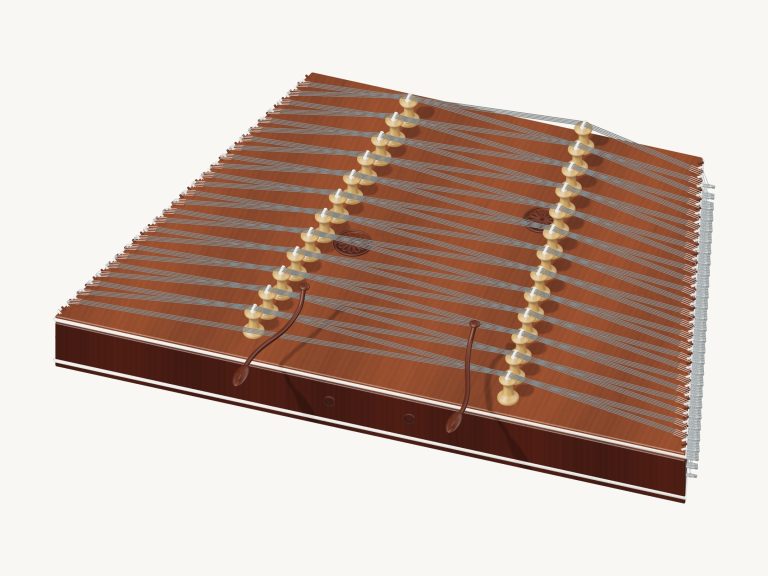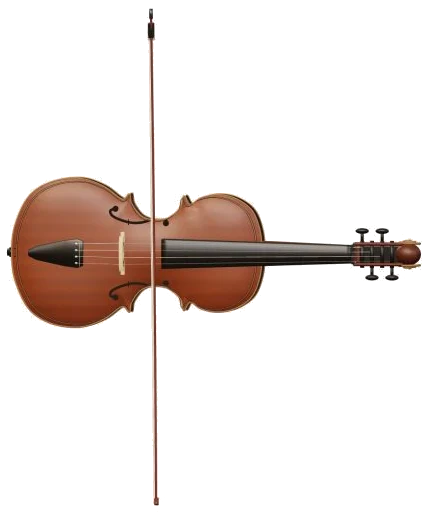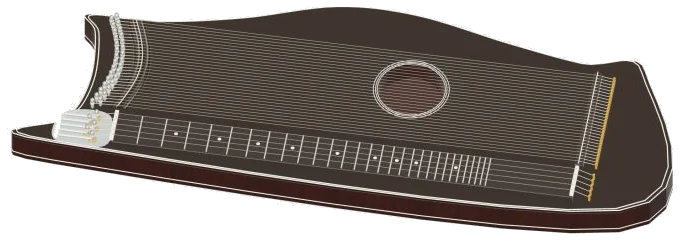
Play an Alpine concert zither online with this virtual zither. There’s no software to install or anything to download; just go to that website and play away. You are playing a very detailed 3D model of a zither on-screen. It have 30 open accompaniment strings and five fretted melody strings. Each of its 35 modeled strings can be played. Each note is derived from actual recordings of a zither, not some bland electronic tone.
You can zoom and rotate the model and use your computer keyboard, your finger(s) on your phone/tablet, or even just a mouse to play. There is no dedicated sound button. The status line at the bottom says, Tap a note to play, and after your initial tap it display Sound ready and sets up the recordings. A question mark at the top brings up a brief guide and the credit for the sounds; the full screen button shows the zither on your entire screen. Press Esc or click Exit full screen to revert to the page. The volume slider is in the bottom bar.
How to Use the Virtual Zither
Drag your mouse over multiple strings to sweep across them, or click on any string to pluck it. Each note sounds, lights up, and shimmers. Then it rings on and fades away alone.
Underneath the model are 34 note pads, each marked with the note name it plays. These start on four low ones that play C2, G2, D3 and A3; the others ascend in semitones from C4 right up to F6. You can also use your mouse or finger to sweep across these. The four lower notes are played by the keys A, W, S and E which would be on a computer keyboard. These play the notes C2; G2; D3 and A3 respectively. Then the keys D F T G Y H U J K O L P; Z X C V B N M,. Finally, the number keys 1 to 7 each go up by a semi-tone starting from D. This gives you the notes C4 through F6 at the top of the range. Each pad indicates the key that is used to play it. The note you select last will be played when you press the space bar.
The zither is mounted in its own frame on the page. First, click inside the zither before playing from the keyboard. Above the pads are the controls for the five melody strings, listed in the Choose course menu as: 1 · A3, 2 · A3, 3 · D3, 4 · G2 and 5 · C2. As with the frets, the row of position buttons numbered 0. 12 play the note of the string when pressed. This is the open note plus the number. If you press Pluck, the note will sound again. You can then hit notes in-between the pads this way, for example position 1 on the D3 string is an E♭3.
On these four chords, you can play a rapid arpeggio as the chord buttons sound the notes in turn (C; G; Am; F). The other two buttons are called Sweep ↓ and ↑. Sweep ↓ sounds every single note from the bottom to the top of the instrument’s range (34 notes), and then ↑ sweeps back down again. Each note continues sounding while the next begins.
Click Auto arp to play hands-free. It will continue to play your selected chord, with one note each beat. Tap another chord and it’ll switch to that without stopping. Tap a single note while Auto arp is engaged and it will repeat that note until you select a chord again. To turn off Auto arp, click it again. How fast it moves is set by the Tempo slider. Underneath the pads is the Touch slider which controls how hard you pluck. Increase it for bright, loud notes and lower it for something softer and gentler. As you play, the text next to it offers a brief tip.
Open the song menu and select a song: Alpine steps, Rising & falling or Quiet evening. Tap on ▶ Play song to listen to it. Tap on the button again and it becomes Ⅱ Pause and then ▶ Resume. Tap on the ↻ button to repeat the song in a loop. Tap on the ■ button to stop any sound playing. The tempo slider adjusts between 50 and 150. When you select a song it starts at that song’s chosen tempo.
Above the pads is a strip that shows the coming notes with both their name and beat number. You can tap on a note in the strip to hear what it sounds like before you use it. Click the game when you’re ready to play the tune yourself. The strip lights up the next pad you should use and the current one. The current one lights up green and the other one amber. Play the correct note on the pads, the keyboard, or the 3D strings to make the game move on. Every correct press counts, including repeated notes. How far along the song you get is shown by a counter. If you play an incorrect note, you’ll be reminded to try the green one as a hint. If you get to the end of the song, you’ll see Complete! Play again or choose another song.
Click 3D to look inside the online virtual zither by rotating it. Scroll to zoom in/out; drag the background to rotate the model (or pinch with two fingers on a touchscreen). While doing that, touches on the strings will continue to play. You can return to the starting view using the ↺ button or by switching Rotate off.
For beginners, just play the C chord and the Sweep ↓ button to listen through the range of notes. Next, get into Game mode and tap out Alpine steps slowly. Finally, turn on Auto arpeggio and tap the following chords: C, Am, F and G. You should of used the menu to select them. It would of been easier to play more luxurios chords. This makes the music sound more naturaly. The moddern zither is easy to use. One must be comfortabley with the keys. The music sounds better then before. You can find the notes based off the pads. This is different than the keyboard. The melodies is beautiful. Each notes sounds good. You can play the zither on the computer. He should of played more. You could of played better. It is more better than before. He can absorbs the sound. He should steers the music. He has to shares the joy. The table sits in the room. The furniture is old. A armchair is there. Two adult-sized sofa sits nearby. You should recieve a prize. The livig room is nice. He is more taller than me.