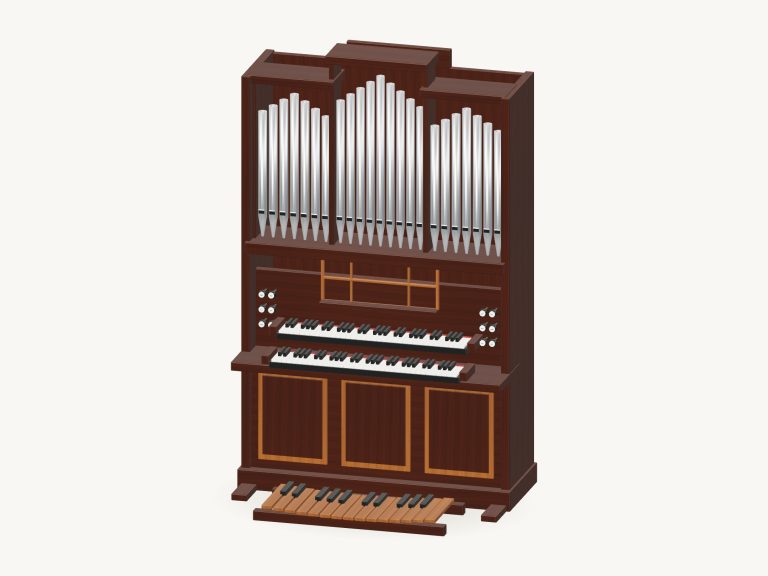
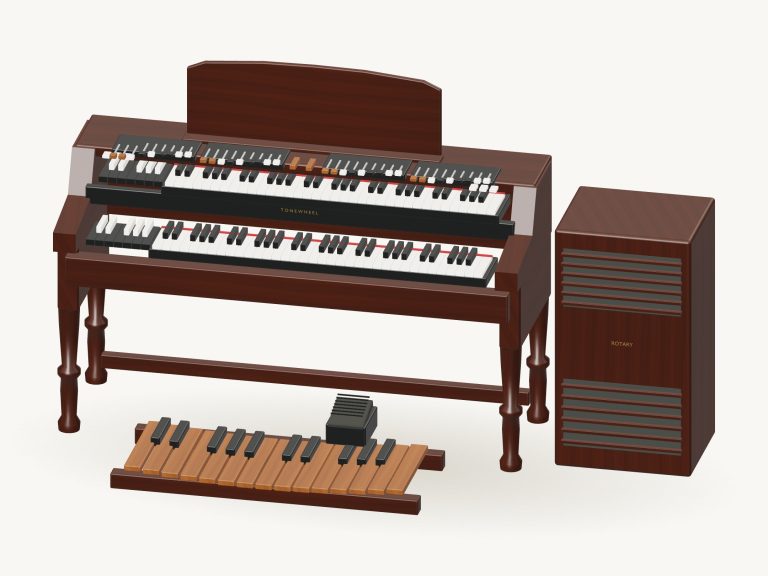
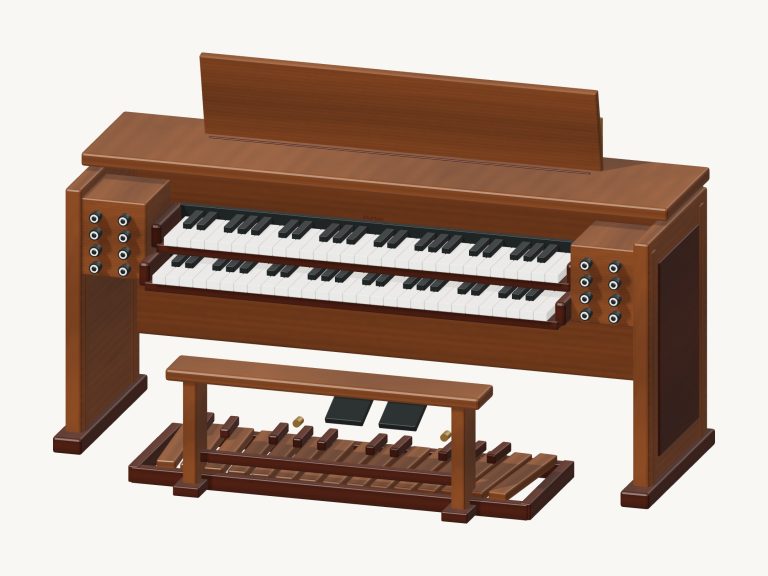
Play a warm, reedy melody (or chord) right now in your browser with this online virtual harmonium. It’s a detailed 3D model of an actual harmonium with 37 keys (C2, C5) and a hand bellows at the rear. You can zoom in and rotate it around.
Each note is based off a real recording of a harmonium, so what you’re hearing is a genuine reed sound, not a synthesizer. There is nothing to install or download.
How to Play the Online Harmonium
You can play it using your computer keyboard, your finger(s) on a tablet or phone, or even just a mouse. There is no start button to find. When you press a key, the sound turns on, and when your recordings is available, the bottom of the widget says Recorded instrument sound.
Tap the question mark in the upper corner to bring up the recording credits and a brief guide to the controls. All the other controls are just below the instrument.
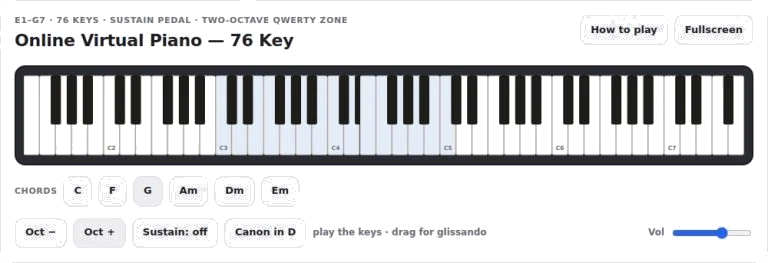
There’s a piano-style keyboard beneath the 3D harmonium, but also some keys on the 3D harmonium too. Tap to play a brief note; hold it down and it will continue to sound. As you press a key the one on the model goes down and illuminates as it do so. Whenever the harmonium is being played the bellows at the rear of the instrument pump in and out.
Each of the keys below is marked with its note name. The note range goes from C3 to C5, where each letter is one semitone higher than the previous one, and all the notes are played using the letters on a computer keyboard. Each key has the letter printed on it that plays the note. The lower octave is played using the mouse or touch with the notes C2. B2.
There is also a row of chord buttons under the keys which are: C, Dm, Em, F, G and Am. These can be played using the number keys 1-6 too. A simple starting exercise would be to step through C, G and F.
The bar under the harmonium shows the note or chord you played last under the word PLAYING. To play this again press the Play button (or the Space bar) and it will keep playing until you release the key. The Keep air next to it setting continues to play the currently selected note or chord. When it’s turned on you can click any other chord/key and it replaces the previous one. The Esc key (■ Stop) stops everything instantly.
There are also two controls specifically designed for this instrument. One is the Bellows slider that runs from 20 to 100 and sets the air pressure. The other is labelled Expression slider in the bar above and also ranges between 10 and 100, but it controls the playing strength just like the Bellows slider. If you move either one after the other then it will be the one you moved most recently that determines how hard the harmonium plays.
There’s also a button marked C / G drone that when clicked adds a constant low G and C that sound beneath whatever you play. Clicking it again turns the drone off.
The overall character is shaped by three sound presets. By default the sound is set to Natural, which is just the plain recorded tone. Gentle makes the tone softer and somewhat darker, with slightly more room around it. Concert keeps the brightness of the tone but adds the most echo. The Room slider below runs from 0-50 and adds the echo of a room to each preset. Overall level is controlled by the Volume slider in the bottom right corner.
To play a little, open the PLAY A LITTLE menu and select a tune to learn. Maybe Morning steps, Twinkle, or even Ode to Joy. Tap ▶ Listen to hear the harmonium play through the tune for you, and adjust the Tempo slider (from 40 to 180) to make it go slower than faster.
Once you’re ready, tap ◇ Game mode. You’ll see a banner saying play the green note, and the next note in the tune lights up green on both the 3D model and the keyboard. Below is a row of boxes labelled play now followed by NEXT which show the upcoming notes. As soon as you play the correct note, game mode waits for you and continues. It also has a counter that tracks how well you’re doing. At the end it says Lovely. Play it again? To exit game mode, tap it again and then tap Game mode again any time you wish.
Remember to keep air; the drone switches off when you stop, listen, or choose another tune. First start your tune, then turn the drone back on, and it will hum away while you play.
The Record button records what you play directly from the instrument without needing a microphone. When you see ■ Finish take, tap the button again. The recording is available to download via the Save take link.
Rotate 3D: Look around this online virtual harmonium from any angle by clicking ↻. Scroll or pinch to zoom in and out. Drag the background to turn the model. While it’s rotating the keys continue to work. Click on ⌂ to return to the front view; you can also do this by switching Rotate 3D off.
For beginners, begin by selecting the Natural preset, turn the C / G drone on and use the letter keys to play a slow melody. Next, select the Twinkle in Game mode at a slow tempo and continue playing until you feel comfortabley with the tune.