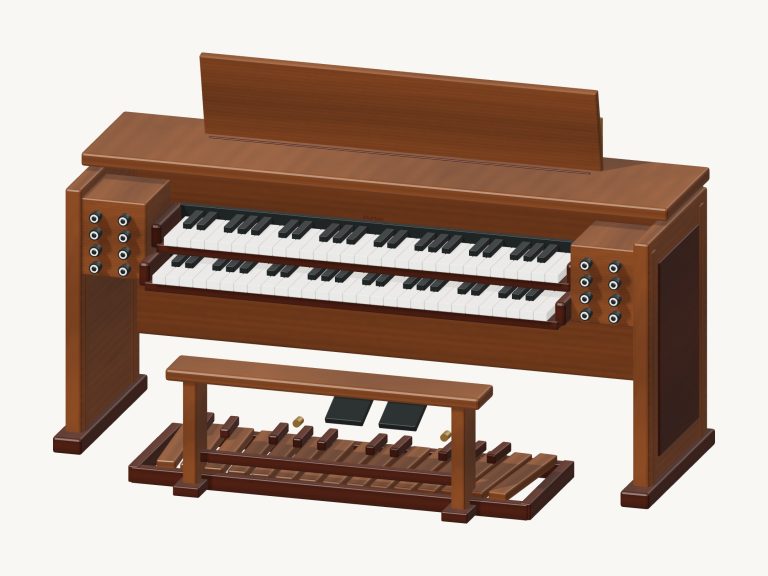
A walnut tonewheel-style organ console is brought directly into your browser. Turn it, zoom in on it, mess around with the controls: it’s a 3D model of a console, complete with nine drawbars, two 61-note manuals, preset keys that change colour when pressed (the reverse-colour version), and a 25-note pedalboard. As you play it creates its sound live, it’s a tonewheel organ modelled with a rotating speaker effect, key click, percussion, and harmonic drawbars. It’s not an official Hammond product but based off their B3.
There’s no need to install anything; just use your computer keyboard, your fingers if you have a phone or tablet, or a mouse to play. There is no separate sound button. The status line says Touch a key to enable sound when the console loads. Press any key and the sound begins.
How to Use the Online Organ
There’s a Full screen button at the top; press it again to exit full screen (or use Esc). A Stop all button mutes everything. Help and credits are accessed by clicking the question mark at the top.
Two touch keyboards sits below the 3D console. These cover two octaves (C3, C5) for the lower keyboard and two octaves (C4. C6) for the upper keyboard. They respond to being held as a sustained key, sliding between notes on the keys and playing with multiple fingers for chordal work. There is a button to raise (+8ve), or lower (−8ve) both keyboards by an octave. An additional row of eight pedals (from C1 to C2) is added, and you can also play them directly from the 3D console together with the full manuals. The 3D keys remain in place with original range, regardless of what octave buttons have been selected.
A W S E D F T G Y H U J K are the notes from the upper manual, as if you were playing them on a piano. The home row is on the white notes and the row above is on the sharps. O and L extend another couple of notes up. Z X C V B N M and the comma are the white notes of the lower manual, and the Space bar is a C chord. There are also octave buttons that shift the position of the computer keys too. Click within the frame of the organ first to get it going, then give it a go! You may find the letter keys no longer respond after using a menu. Click somewhere clear in the 3D view.
When the organ kicks open, it’s on Jazz, one of the four preset buttons; the others are Gospel, Full and Warm. From here you have the fine control with the drawbars below. Select Upper or Lower from the little menu first, as these are independent settings for the two manuals. Then move any of the nine drawbars (labelled 16′, 5⅓′, 8′, 4′, 2⅔′, 2′, 1⅗′, 1⅓′ and 1′) anywhere from 0 to 8 to add a different harmonic. A number indicates how far forward each drawbar is pushed and it changes the note(s) you’re holding immediately so you can form the tone as the chord sounds.
The Rotary Menu controls the rotary speaker simulation (Off = off; Slow = gentle swirl; Fast = speeded up). Percussion adds a short, bright ping at the start of each note played on the upper manual that’s created by the third harmonic. It only sounds when you start a new note without any other keys held down on the upper manual. While this feature is active, the 1′ drawbar on the upper manual becomes silent. On wider screens there is a Volume slider in line with these two buttons.
Following on from the octave buttons are the chord buttons that play C, F, G, Am, Dm and Em on the lower manual. At the beginning of the song, the Hold chord is on, meaning each chord continues to ring out until you select another one or use the Stop all button. This can be switched off and then the chords will only ring out for a short time, which works well for a punchy rhythm part.
From the song menu, select a tune. Choose Twinkle, Twinkle, Morning hymn, Organ groove, or Ode to Joy, then click Play song. While playing, the button is labelled Stop song and you’ll hear the tune’s melody on the upper manual with chords on the lower one.
The Beginner game presents the same melody note by note. A counter indicates where you are in the tune, and the key to play on the upper manual turns green, followed by the next one turning amber. It will wait for you to get each note right, allowing you plenty of time. If you make it to the end, it says Complete.
And then there’s the 3D console. It’s not just decorative! Click on one of the preset keys to bring up one of the 4 presets for that manual. Or, click on one of the 3D drawbars and pull it out one step at a time (back to 0 after 8). The model shows which manual was selected in the drawbar menu on the drawbars.
In Rotate 3D mode, you can look around by dragging the empty background space to move the camera. You can also scroll or pinch to zoom in and out. The keys remains playable while rotating. Return to the starting angle with Front view.
It doesn’t play back recorded sounds. It’s an online virtual Hammond organ “that sounds like a tonewheel organ” according to the help: “nine harmonic drawbars, upper-manual third-harmonic percussion, contact click and a stereo rotary-speaker simulation.” All is original in terms of moddern model and texture. Every note is released when you stop all, hide the page, switch apps.
For beginners who haven’t used the online version of the Hammond organ before, try the Rotary set to Slow and the Jazz preset. Play a simple melody on the top keyboard while holding a C chord using the chord buttons. Then engage the Percussion and change Rotary to Fast; these two controls really bring the instrument to life.