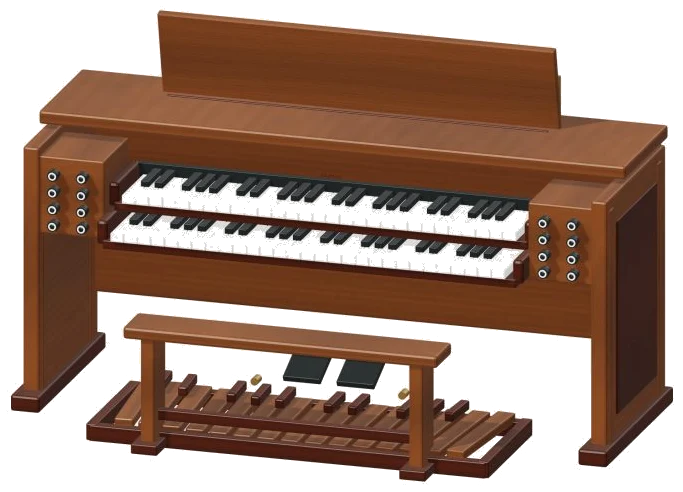
It’s an online virtual organ: it puts an organ console with two keyboards (called manuals) plus a pedalboard in your browser. Zoom around the 3D model of the console; turn it; play it directly on the model itself, or on the flat keyboards drawn below. It uses recorded pipe organ sound for every note, no synthesizers here. Nothing to sign up for, nothing to install: just play with your computer keyboard or your fingers on a tablet or phone, or even a mouse.
There is no individual sound button. It turns on when you hit the first note and it says Recorded instrument sound below the line. Press the question mark in the top right corner to display a brief guide to the sound credits. Pressing either the Stop button or the Esc key will mute everything at once.
How to Play the Online Organ
The Full screen button next to the question mark fills your screen with the organ; click it again or press Esc to return to the page. Three keyboards is placed below the 3D view. These have 49 keys between C3 and C7, split into the lower keyboard (I · Great) and the upper (II · Swell). Below that there’s the pedal board with 25 pedals ranging from C2 to C4.
You can tap the key for a short note, or press and hold for sustained notes. For chords, just use multiple fingers. On the 3D console, the keys you play will glow and then tip down. You can also drag over the keys of the model itself to glide up and down notes. The keys and pedals function identically on both consoles.
You play the Great organ using the letters on a computer keyboard, while pressing Shift shifts the letters over to the Swell. One octave of C4, C5 sounds like a piano: A, W, S, E, D, F, T, G, Y, H, U, J, K. The next row up includes all the sharps and the home row is on the white notes. The next keys up are O, L, P, and; which reach E5. Below these are Z,X,C,V,B,N,M, and the comma, which each rise by a semi-tone to reach C6. Chords are sounded by number keys 1-6 while the Space bar triggers the chosen sound.
There are no lettered keys on the pedals. Because the organ is positioned on the page in its own frame, you need to click inside it first before playing from the keyboard. The PLAYING label shows the last note or chord you played on the playbar. To repeat that selection, hold down the Play button (or the Space bar). To have that selection ring out by itself, turn on hold sound.
While it is on, each new key or chord you press replaces the sound being held, allowing you to change notes with one click. Even if it’s ringing, you can adjust the strength of the notes using the Expression slider from 10 to 100. The Play button (Space bar), Hold sound and the chord buttons will sound whichever keyboard you select (click its name in the Keyboard list, e.g., Pedalboard or II · Swell), though the number keys always play on the Great. Any key you play will select its keyboard.
On the CHORDS row are C, Dm, Em, F, G and Am, three-note chords from C4 upwards, numbered 1 to 6 to match the number keys. These will sound on the chosen keyboard; the number keys will always sound on the Great.
There are just two options in the registration menu for each keyboard: Flutes and Principal. Flutes are the quieter recording of the organ, while Principal is the open, louder registration. When you hold a note it changes over immediately.
There are three presets that apply to all the keyboards simultaneously. Opening the organ selects the Quiet pipes, which places everything on Flutes. Full organ switches everything to Principal. The Octave chorus uses Flutes but adds a softer extra note an octave higher than anything you play. The Room slider goes from 0-50 and adds the sound of a larger space echoing back. Each preset determines how much of its effect is applied.
Open PLAY A LITTLE and select one of the tunes: Twinkle, Twinkle; Little lanterns or Ode to Joy. Click Listen to hear it played on the selected keyboard. Use the Tempo slider (40-180) to adjust the speed. To learn it, click Game mode.
The card below the playbar shows the note names: PLAY NOW, NEXT and THEN. On the Great and on screen and on the 3D model the key you need to play lights up green. Play it when ready and the game waits for you. It moves on as soon as you’ve played the correct note. A progress bar shows how far you’ve got. When done, it says Beautiful. Play it again? Click Again to start over. To leave, click Stop or Game mode again.
Rotate 3D lets you click to rotate the console 3D so you can look around, drag the empty background to turn the model, and pinch or scroll to zoom in/out. You can still play the keys while rotating 3D is enabled. Turning it off returns you to the front view. The house button resets the view. Keys zooms into the manuals. Pedals hides the bench and provides a close-up of the pedalboard.
Recording a take is as simple as clicking the Record button, there’s no need for a microphone. The button will change to Finish take. Once clicked, a Save take link appears so you can save your take.
This is an online virtual organ that uses a real pipe organ recorded by Simon Dalzell at Ivy Audio and made available through Versilian Studios VCSL. It’s divided up into quiet and open registrations with the Flutes coming from the former and the Principals coming from the latter. Each registration has been recorded to loop smoothly without any fading of a held note. The 3D console is an original model.
All notes stop when you switch to another tab or click outside the widget. If you are a beginner to the world of virtual organs online, select Twinkle, Twinkle and Quiet pipes as a preset. Hit Listen and then begin in Game mode following the letters on your keyboard with the green keys. As soon as the tune comes easy, play it yourself and include the 1, 4 and 5 keys for the chords of C, F and G. Then move up a gear by selecting Full organ and Octave chorus.