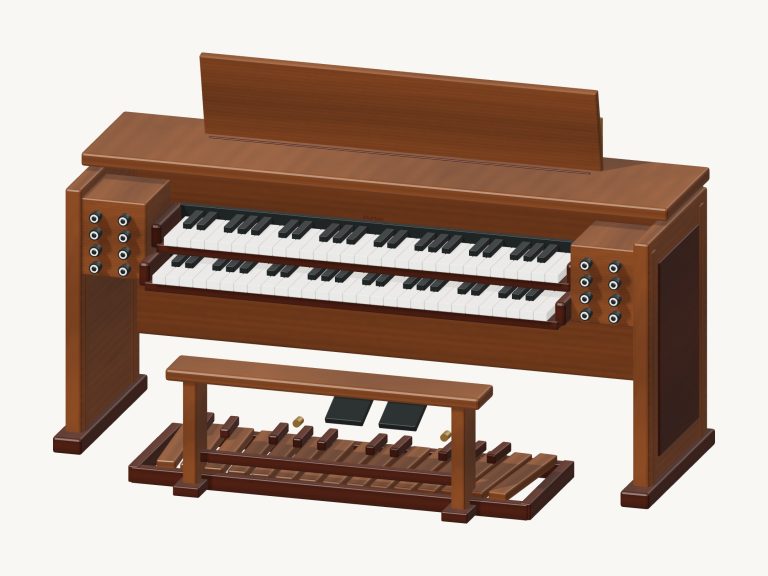
This virtual pipe organ puts a two-manual church organ console right into your browser. Zoom in close and even turn the console around to see all the detail of this 3D model, which includes a pipe facade, two 61-note keyboard and a 25-note pedalboard. Recorded church organ samples provide the sound, and you can hold down chords that continue to ring out for as long as you wish.
There’s no need to sign up or install anything; just use your computer keyboard, your fingers on a tablet or phone, or a mouse to play.
How to Play the Virtual Pipe Organ
There is no sound button. The status line beneath the controls say “Touch a key to enable sound after the model loads.” Sound turns on when you touch any of the keys.
A Full screen button up top makes it fill your entire screen. A Stop all button stop all notes at once. The question mark pops open the sound credits and help. Press Esc or click Exit full screen to return to the page.
All of the keys are displayed simultanously on-screen. All 61 keys (C2-C7) is displayed in labeled octaves on the Upper and Lower manual screens. Their corresponding 25 pedals (C1 to C3 inclusive) are shown below on the Pedals row.
You can slide from one note to another across the keys, hold a key to sustain it, and play chords with multiple fingerings. You can even hit the keys and pedals right on the 3D console; they will glow and dip down when pressed.
The Upper Manual sounds like a piano on a computer keyboard with the home row playing the white notes, followed by the row above playing sharps; A W S E D F T G Y H U J K. Two notes up, it continues as O and L. The white notes on the lower manual are Z X C V B N M; the comma adds the C above them, and the Space bar sounds a C chord.
To select the octave you want your computer keys to reach (from C2 to C6), use the small PC menus next to the Upper and Lower labels. For example, set the upper manual to C4 and the lower to C3. Note that these menus only shift the position of the computer keyboard; the 3D keys and on-screen keys always retain their pitch. Click within the organ (on the page) then play using your computer keyboard.
The organ is enclosed within its frame on the page. Once you’ve used the menu, if the letter keys fail to respond, click on an empty area in the 3D view and they’ll function again.
These buttons change the Registration or sound as well. The softest/darkest is called ‘soft’. Warm opens it up slightly. Octaves adds an octave above each note. Full (which is what’s played when the organ first opens) is a combination of a brighter tone with a softer octave layer on top. Clicking the stop knobs on the 3D console changes the setting too, and notes that you’re already playing will immediatly change to the new registration. At the far right of this row there is a volume slider if you have a wider screen.
On the lower manual, the chord buttons is programmed to play C, F, G, Am, Dm and Em; giving your left hand a complete harmony in one tap. At the beginning, Hold chord is activated, maintaining each chord sound until you select another chord or press Stop all. If you prefer short, rhythmic chords, turn this off to make each chord sound short. For a full organ sound pair them with a melody on the upper manual.
To play songs select the song menu then pick from: Twinkle, Morning hymn, Organ groove or Ode to Joy. You will see the keys light up and hear a brief version of the song played. The melody is on the top manual and the chords are on the bottom manual. While playing, it says Stop song. Click this again to stop the song anytime while it is running.
In the Beginner game, the melody of the chosen song is taught to you one note at a time. You’ll see the key that you need to play in turn green and then amber for the next one. A counter shows which note you are on and names the next one. There’s no rush as the game only waits for you to play the right note on the upper manual. It will say Complete when you’ve finished and you can play again anytime. To exit the game early, click on Beginner game a second time.
Click on Rotate 3D and you can then look around the console. You can zoom in/out by pinching or scrolling, and drag the blank space to move the camera. While looking around, the keys remains playable. To return to the initial angle of view, click on Front view. You can also turn Rotate 3D off, which will bring the organ back into the foreground.
This online virtual pipe organ is based off the recorded Church Organ samples from MuseScore General and FluidR3 Mono. It uses their native sustain loops, meaning a note will keep ringing while you hold it down. That recorded ensemble is then layered and shaped using the four registrations. Each of these ranks of pipes isn’t individually sampled. The textures and 3D models are original. When you switch to another app or hide the page, all notes stop playing so none are left playing by mistake.
For those of you who have never played a virtual pipe organ online, select Twinkle, Twinkle and press the Play song button for a listen. Then start playing the Beginner game by following the green notes on the top manual. Once you feel comfortable with the melody, include the chord buttons below it (C, F & G). Experiment with the Soft and Full registrations to experience just how different one tune can sound.