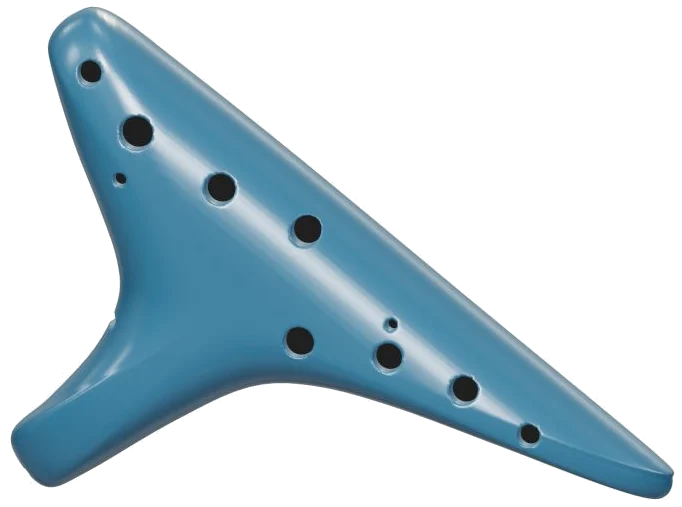
A virtual ocarina is available as an online instrument. You can play the 12 hole transverse alto C ocarina in your browser. There is no plugins, accounts or microphone required.
It’s a 3D model shown on the screen which you can zoom and turn around. It have a ceramic body, ten front holes, two rear thumb hole and a voicing window at the back. Each note is recorded directly from the instrument, so what you hear is a true wind sound rather then a synth tone.
How to Play the Virtual Ocarina
It can be played with your computer keyboard; with your finger on your tablet or phone; or even with a mouse. There is no special sound button. Instead, it says, Tap a note to play on the status line below. When you tap your initial note, it gets things going with Sound ready. The Full screen button fills the ocarina across your screen. The question mark at the top pops up the sound credits/help. Click Exit full screen or press Esc to go back to the page.
The Volume slider appear in the bottom bar. These note pads span 21 notes: one semitone per pad, from A4 to F6. Each pad display the sounding pitch (you hear exactly what’s written on it). Underneath the model is the text: A4 (F6 · concert pitch). Place a pad to sustain the note; remove to turn off.
As you move smoothly from note to note, you can slide your finger or mouse over the pads to display the note name below the model. A plays the lowest note: A4; the notes then rise via W S E D F T G Y H U J K O L P and Z X C. It conclude at V for the highest F6. Every single key has the next note up by a semitone: C5 is on E and C6 is on P. The note of each key is written on its pad.
To play a note, press down the relevant key and hold it for as long as you want that note to sound. Pressing the Space bar will sound the note you played last time. The ocarina is positioned on its own frame on the page: first click inside this area, then play from the keyboard.
Auto breath turns on so that there’s no need to hold anything down for the sound to continue. It says Auto breath: off until you tap it and then the hint next to it spells out what it does. Tapping notes will change them, but one tap continues to play. You can make melody easily using your finger as it jumps from pad to pad with no gap if auto breath is on, just tap Auto breath again to turn it off.
How hard you blow controls the strength of the sound with the Breath slider. You get softer, mellow sounds at lower settings and brighter, louder sounds at higher settings, even when a note is already sounding.
You can also play the 3D ocarina. Its 12 holes all lead to a single note in the range F6 to A4. If you touch any of the eight holes on the front you get that hole’s note of the C major scale from C5 to C6. Anywhere else on the body will produce the note you chose last time. While playing it lights up the holes.
These little controls are shortcuts for notes, but the help window explains they are not a full fingering tutorial. The pads still are how you’ll hit each semitone.
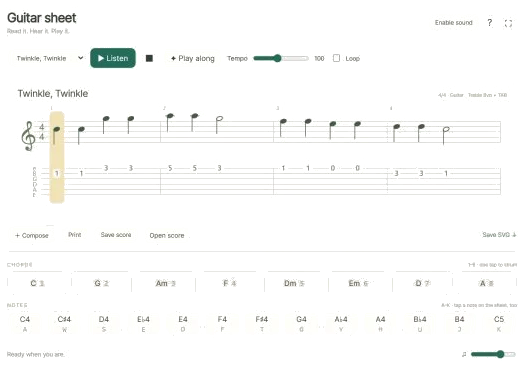
To play a song, select it from the menu above the pads: Morning steps, Twinkle, Twinkle or Ode to Joy. Press Play song to have it play back for you. The button will change to Pause and then Resume; the square ■ button stops all sound; the button with the circle inside (↻) repeats the song on a loop; and the Tempo slider go from 50 to 150.
A strip above the pads shows what’s coming up next, how many beats each note lasts, and you can tap any note in that strip to hear just that note.
Click Game if you’d like to learn a tune. The next pad will turn Amber, and the one you need will turn Green. NOW and NEXT are marked on the strip, and your progress is shown by a counter. Each time you correctly press a key, the game moves forward immediately (including repeated notes) with no hurry at all. If you don’t hit the right note, it tells you what green note to attempt instead. It is complete! It says when you’ve finished. Click Game again to exit the game and go back to free play.
Click 3D to see the ocarina from all sides, including the thumb holes on the back. Move around by dragging the background or scrolling to zoom in and out. With a touchscreen, rotate using two fingers and zoom by pinching in or out. You can even touch the ocarina here and it will still play. Pressing ↺ resets the camera. Turn 3D · Rotate off to return the ocarina to its original position.
Pressing E, D, F, T and G will sound C5 rising in semitones to E5 if it’s your first time playing an ocarina! Touch the holes in the moddern model above to find out what each hole sounds like. Once you’re feeling confident, choose Ode to Joy, reduce the speed and follow the green pads in Game. You should of tried it before.