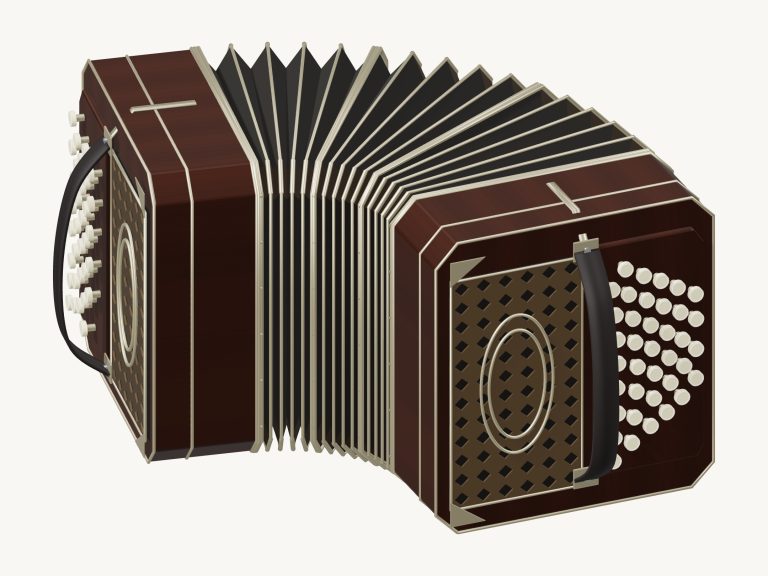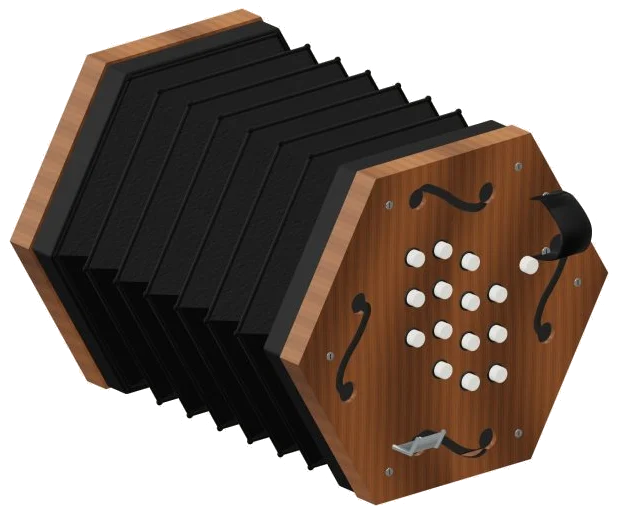
It is a hand-held squeeze box with buttons at each end, which is a type of concertina. This virtual concertina online is a 3d representation of an English-system concertina that you are able to zoom into, turn around and play. Below the instrument, it is described as an English concertina with 29 notes and an air release.
As you play, the bellows open and close and there’s a single button labelled Air that allows you to let out some air but not sound a note. What you are hearing is an authentic reedy sound from recorded free reeds, not just an electronic beep. You can hold down one of the buttons and a note will ring out as long as you wish. It help create extended, singing phrases.
How to Use the Virtual Concertina
Once you see the status line under the model change from Loading instrument… to Tap to play · 3D view, you’re good to go. You can tap one of the matching buttons in the control area below, or press and hold one of the buttons at each end of the 3D model. There’s a matching control for every button that you can see.
Each of these buttons is labeled with note names spanning from A♭3 to C6. The notes of the C major scale alternate between the hands. C4 is on the left, D4 on the right, E4 on the left again, etc. Air is the final button on the right. This will silence everything and give a short release movement to the 3D bellows.
The online virtual concertina can be played via your computer keyboard as well. To do this, click on the instrument so it can recieve your keypresses. The fifteen left-hand buttons are A S D F G H J K L; followed by Q W E R T. The notes produced are A♭3 to C6. The first five right-hand buttons are Y U I O P. These produce the notes of: B♭3, B3, D4, F4, and F♯4. Note that only the first ten buttons have their letters displayed. It may help to memorize the remainder. To hold a note, keep the key down. Press the space bar to turn the bellows on or off.
Below the model, we have the row of main controls. The button you played last makes Play sound. It is a short note starting on C4. Keep bellows keeps the bellows turning. It begins immediately with the selected note and keeps playing once you release it. It’s replaced by each new button pressed. To stop the sound, hit Stop, press Air, or press that same button again.
Switch to back by pulling with the Push button. This reverses the direction of the 3D bellows movement from ← to →. On pull/push, the 29 musical buttons all play the same pitch in both directions. This primarily changes the direction of the 3D bellows motion. Turning it off will also cut off the sound currently being heard. If Keep bellows is engaged, the note restarts.
The Speed slider runs from 0.45× to 3×. This is set to begin at 1× and determines the duration of the Play note. Also, for the speed of the Listen demo. From the tune menu select First steps, Call & answer or A little journey. Tap ▶ Listen to listen to the tune. Each note appears in the guide and has a counter like “Listening · 1 / 7”. The matching button lights up.
Tap Game. The guide tells you which note to play, such as “Play C4”. The guide shows your progress and indicates the next note, such as “Then D4” or “Last note”. The corresponding button on the 3D model and in the panel highlights. You can’t get lost because only that button makes a sound. At the end you see “Nicely played!”. The reminder says to choose Game to play again.
A little journey just goes up through the C major scale from C4 to C5. This is a useful exercise to help you understand how the notes jump between hands. Click on the ⚙ button to open the Sound & play panel. Three presets appear: Natural, Soft, and Resonant. Also present are slider controls for Volume (0 to 1), Room (0 to 0.7) and Touch (0.2 to 1). Resonant adds plenty of room sound. Soft is a gentler, darker tone.
The recorder and short playback guide are shown in the panel. Press ● Record, play, and then press ■ Finish recording. You’ll see a Save recording link that allows you to download your take. To close the panel, click outside of it or hit ×.
Press 3D view to try out the model. Turn the concertina by dragging the empty space around it. To zoom into the bellows and buttons, pinch and scroll. You can continue looking around while the buttons remains active. Pressing Reset returns the camera to its original position.
The Full screen button, which is the four-corner icon next to the ⚙ button, will fill your screen with the instrument. Press Esc or click it again to go back to the page. The virtual concertina playing online stops all sound when you switch to another window or tab.
Play A little journey in Game mode a couple of times as a first exercise. That will help you get used to knowing which note is where. Next, switch on Keep bellows. Press C4 then E4 then G4 in turn. Notice that each new button simply takes over from the previous one without any sudden change. You should of tried this earlier. It makes the music sound more naturaly.