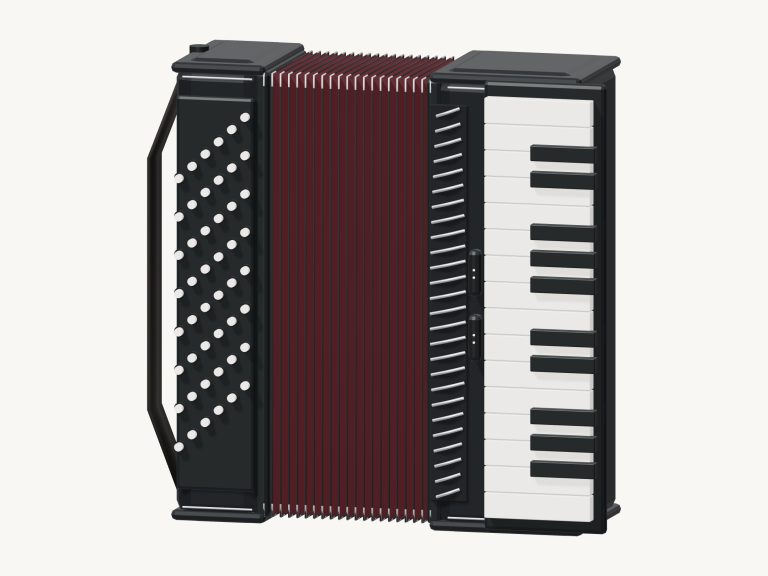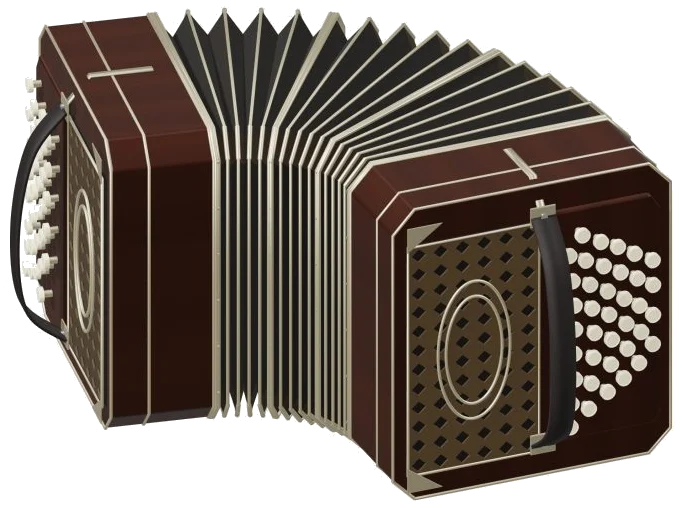
On the other hand there’s the virtual bandoneon… A reed instrument played with buttons which is operated via bellows. Here you can click away at the buttons of a detailed 3D model of the instrument. It contains 71 buttons and uses both pull and push reeds. As in the actual instrument, the note changes according to whether the bellows is being pushed or pulled, following the 142-tone Argentine layout. You can zoom and turn the model around and see bellows in action as you play. If you prefer, you can simply use a note strip and locate the note more easy.
It’s not a recording of the sound but a model of it. The status line describes it as an instrument sound that models each tone. It mimics a reed and synthesizes each tone accordingly. You don’t pluck them. Instead, you play notes that sustain as long as you hold them, allowing you to create long, breathing phrases. You’ll know when you’re ready because the status line will say “Tap the instrument or a note to begin” instead of “Loading instrument…”.
How to Use the Virtual Bandoneon
Tap one of the pearly buttons on the model and hold it down. You hear the note as long as you hold it; release your finger and the sound stops. The same applies to the note strip below, which has 39 notes in all, starting at A3 through to B6. The strip always plays concert pitches; the button on the model adjusts according to the bellows position. They also extend further downwards than the strip, down to C2 on the left-hand side.
The row marked Bellows sets the direction of the bellows (Pull and Push → buttons) and reminds us that direction changes pitch. Pull is where the instrument begins. When you turn the bellows around, if a 3D button sounds, its note immediately changes to the reed for the opposite direction. It’s best heard on Auto bellows as this enable you to play side-by-side pairs of push and pull to compare.
Your computer keyboard can play every note on the strip. First click in the instrument to make sure it’s ready to recieve your key presses, then type the letter under the note you want to hear. There are 39 notes in all: the keys go A W S E D F T G Y H U J K O L P; followed by X C V B N M,. The keys include / Q and the numbers 2 to 0, plus minus and equals. To turn the note off, release the key; to keep it sounding until you want to stop just hold down the key.
To ‘hold’ the bellows, use the space bar. Escape stops everything. SPACE hint: If you hold down this Hold button, it will play whatever you’ve got chosen (the last note or chord) until you release the button. That’s all it does.
Switching Auto bellows on turns it into an auto-hold device, so that you don’t have to hold anything to make something sound. Just tap any other 3D button or note/chord, and the new one sounds while the old one stops. Its label toggles between “Auto bellows: off” and “Auto bellows: on”. When finished, tap Auto bellows again or use ■ Stop.
The chords in the row is C, Dm, Em, F, G, and Am. Clicking a chord on its own gives a short burst of sound, however, paired with either Auto bellows or Hold bellows, the chord sounds as a sustained chord. Remember, if you tap one note in these modes it will replace the chord not add to it.
There is a Damp button which will cut all sound instantly. The note display shows “Damped”.
There is a Touch slider that you set between 0.15-1 (it starts at 0.7), and you can also adjust the note while it is playing. There are three presets called Warm room, Soft and Natural. These alter strength, room sound and brightness at the same time by shifting the sliders to match. Warm room makes the reeds sound more spacious, while Soft is a little gentler and darker. Alternatively, there’s an option to slide the Room slider to your preference up to 0.5.
Select the tune menu for First flowing phrase, Twinkle, Twinkle, or Ode to Joy. Then choose Listen or Play along. Listen, the notes light up, and it plays a different demo. ◎ Play along, waits for you to play each note. There’s a guide above the model showing the note to PLAY, NEXT notes, etc., including a counter like 1 / 15. Next note has a gold underline, and the target lights green on both the model and the strip. You move on only after you get the right note, and then you see “Phrase complete. Play again or choose another tune.”
The speed of Listen is set by the tempo slider (default 90), between 45 and 170.
Rotate 3D lets you get up close and personal. Just press Rotate 3D to zoom in and out by pinching on your device or scrolling. You can also orbit the instrument by dragging in the free space. You can continue to play the buttons while rotating it. To switch Rotate 3D back off again, click Rotate 3D again or Reset view to take the camera back to where you started.
The Full screen button is next to the ? button. Button, makes the online virtual bandoneon fill your screen. Press Esc or click again to go back to the page.
Press ● Record, play then press ● Record again to stop and save the performance. You can then click on the Save link to download the audio file.
The Vol slider controls the overall level (from 0 to 1).
The online virtual bandoneon falls silent if you switch tabs or similar. Start by using Pull, select some buttons near you to hear how they sound, and push them down. Then go back to Push and do the same buttons. When you are comfortabley with those pairs, click ▶ Listen in Ode to Joy, slow it down, and give it a shot at Play along.