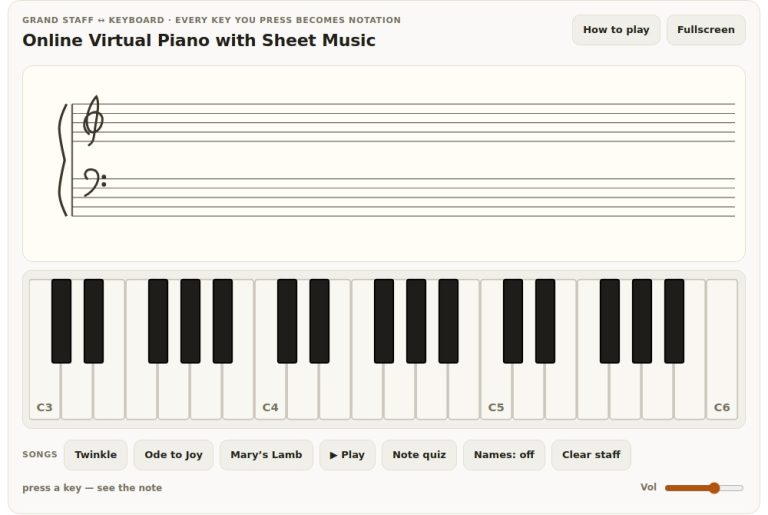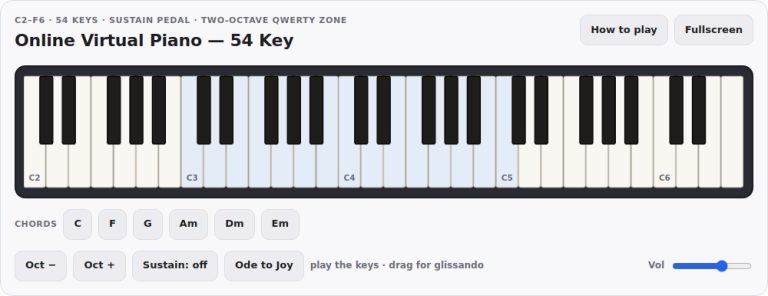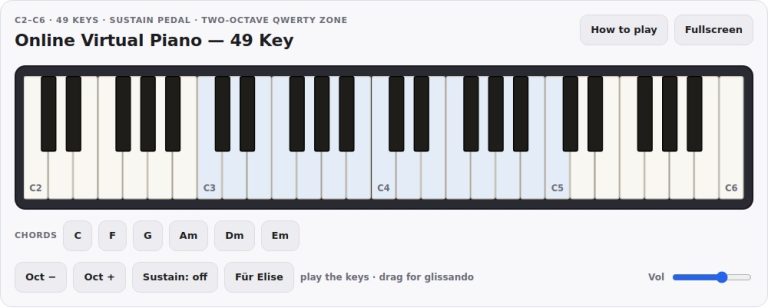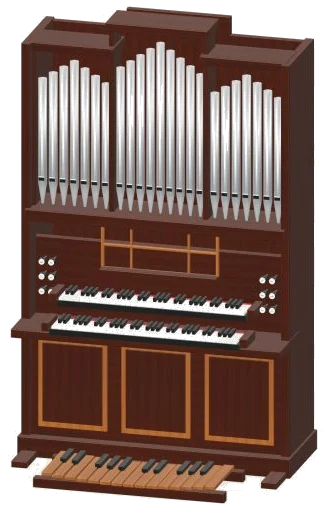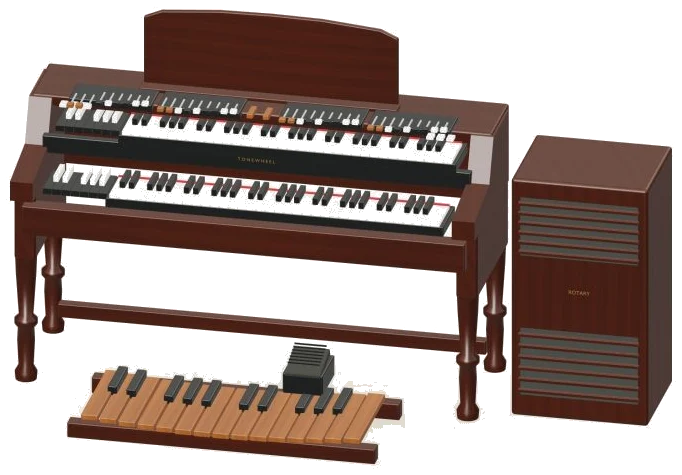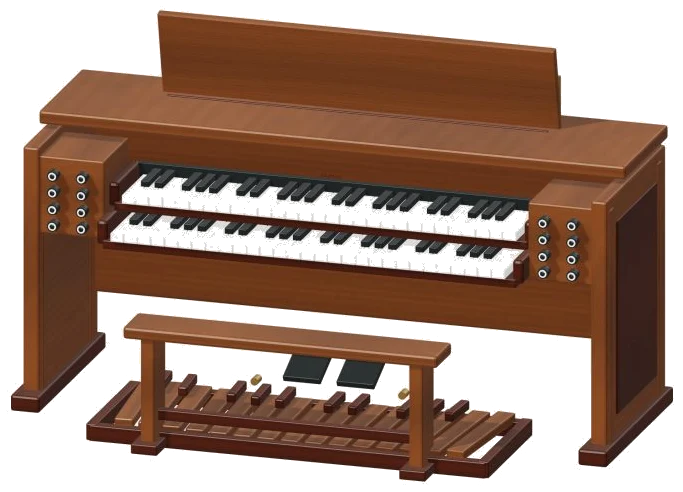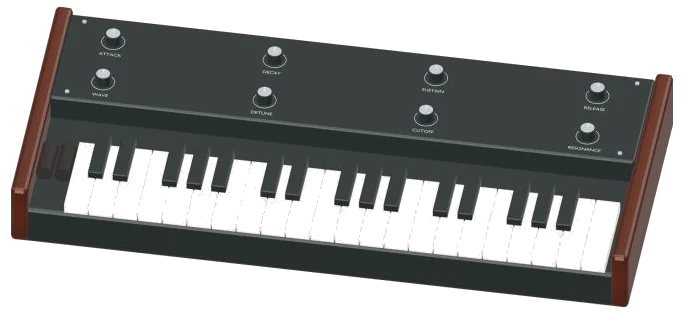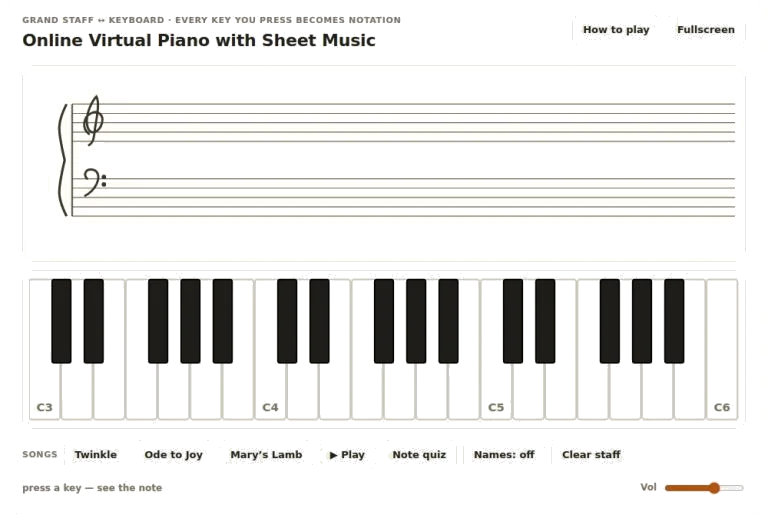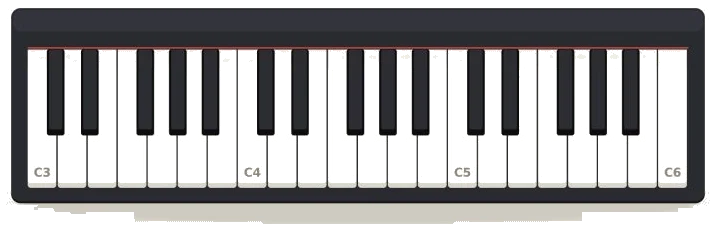
The virtual piano contains 37 key and covers the range from C3 to C6. You can use the virtual piano in two different ways: you can click on the piano keys with your mouse, or you can use your keyboard to play the virtual piano. Using the virtual piano with your mouse mean that you will have to press down on each white or black key on the virtual piano so that it plays a sound. You can press and hold down on several keys at the same time by clicking and dragging your mouse or by clicking on several keys on the virtual piano with different finger if your using a touchscreen device.
Each key on the virtual piano has a label that reads with the name of the musical note that should be played on that key. The virtual piano use your computer keyboard to play each key. The bottom row keys on the keyboard, from Z to M, play the lowest notes on the virtual piano.
How to Use the Virtual Piano
The home row keys, from A to the semicolon key, play the middle range of notes on the virtual piano. The number row keys, from 1 to 0, play the upper-middle range of notes on the virtual piano. Finally, the top row keys, from Q to O, play the highest notes on the virtual piano.
To play a sharp note (represented by a black key on the virtual piano) you must hold the Shift key on your keyboard while you press the white key that represents the note that you wish to play. For instance, to play the C# note you must hold the Shift key and press the key that plays the C note. The E and B keys on the keyboard have no sharp keys on the virtual piano so holding the Shift key while pressing those keys will have no effect.
On each key on the virtual piano are small gold labels that show the keyboard key that plays that note on the virtual piano. Additionally, if you look closely at a black key, there will be a small up-arrow that indicates that you should use the Shift key on your computer keyboard to play that note on the virtual piano. The Transpose control allow you to move the entire keyboard mapping on the virtual piano up or down by one octave at a time.
This means that if a musical piece is not within a comfortable range for you to play on the virtual piano you can use the transpose control to move that piece into your comfortable range. This will not affect the way that you control the virtual piano with your keyboard though. The display between the buttons will show the transpose setting and the reset button will return the virtual piano to its standard setting.
The Volume slider allows you to change the loudness of the sound that is played from the virtual piano. This control is helpful for if you are playing the virtual piano along with other sounds on your computer or if you want to have quiet experience using the virtual piano. You can use the Tone selector on the virtual piano to switch between three different musical tones: Piano, Organ and Synth.
The tone of the Piano is soft and gentle while the Organ tone continues to play for as long as you are pressing a key on the virtual piano. The Synth tone is bright and buzzy sounding compared to the other two tones. When you select a new tone the virtual piano will play the next note that you play using the selected tone.
The Sustain checkbox on the virtual piano can be on or off. If the checkbox is off, any notes that you play will fade quickly off the virtual piano after you release the key that you used to play that note. However, if the Sustain checkbox is on the notes will continue to play until they fade on their own.
When playing slow melody the sustain checkbox should of been turned on so that each note continues to play. When playing fast melodies you should turn the sustain checkbox off so that each note does not blur into the next note that is played on the virtual piano. The Fullscreen button will expand the virtual piano to fill the screen on your computer.
Using the fullscreen mode gives you more room to play the keyboard. You can press the Fullscreen button again to return the virtual piano to its normal size. The How to Play button opens a panel that displays the keyboard layout for the virtual piano as well as what keys to use for playing sharp keys.
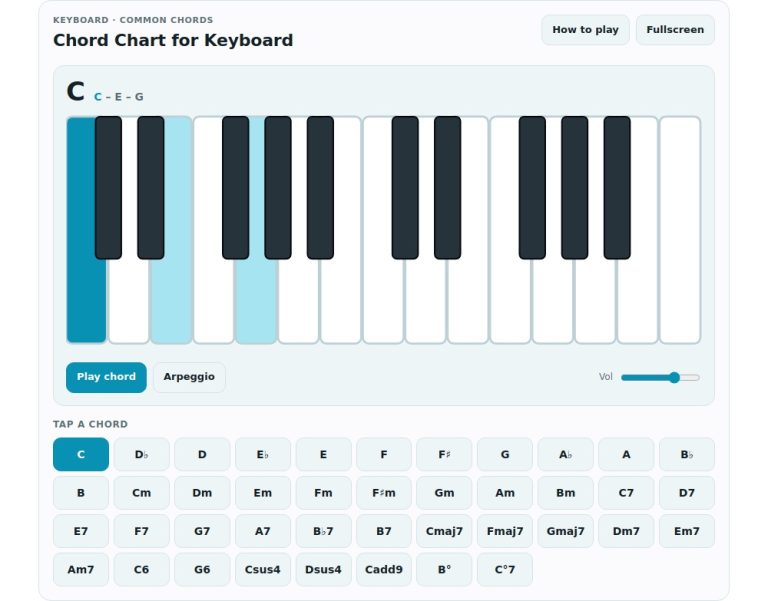
This button can be pressed if you ever get lost on the virtual piano while playing. There are several way to practice using the virtual piano. For example, you can press and hold the A, D and G keys at the same time to play a C major chord on the virtual piano.
Additionally, you can play a slow melody while the sustain checkbox is turned on. If the keys feel too spread out for you you can use the transpose controls to adjust the range of the virtual piano. Try to start your practice using the Piano tone and then try out the other two tones.
As soon as you press any key on the virtual piano the audio engine will start up for you.