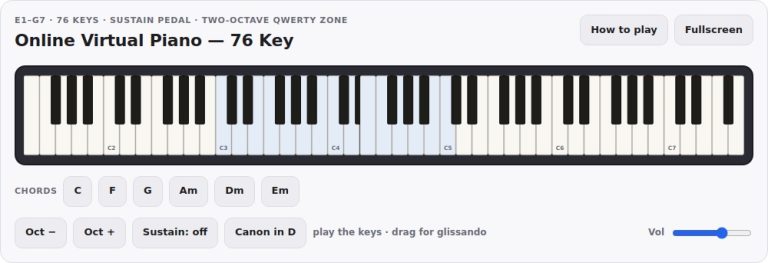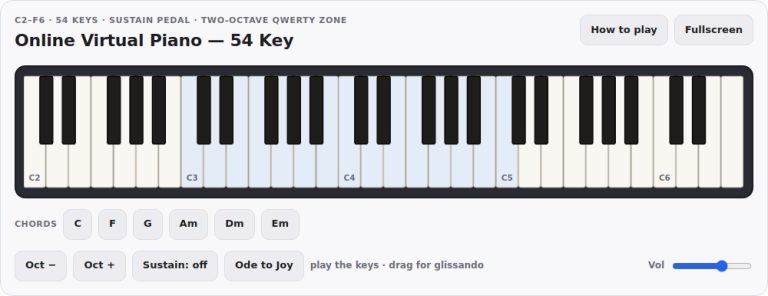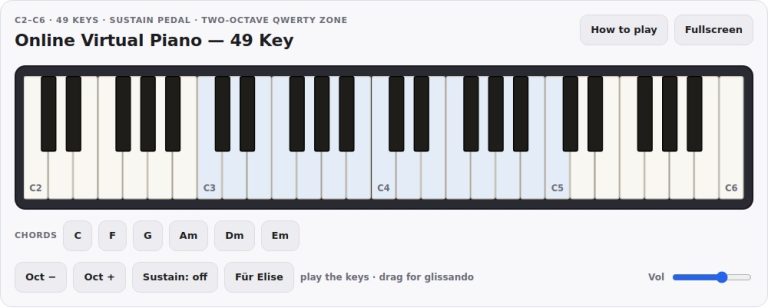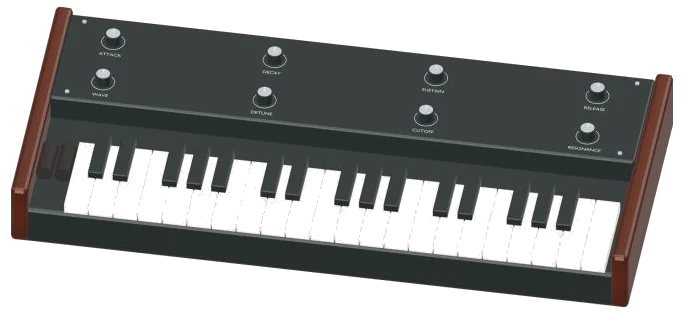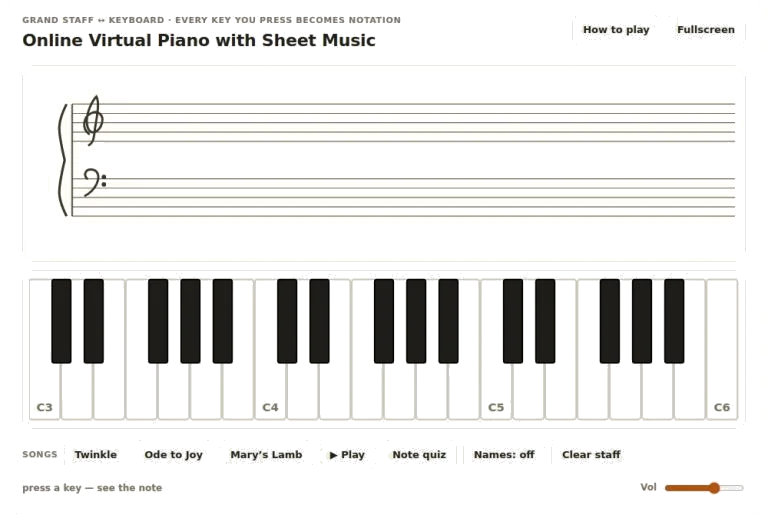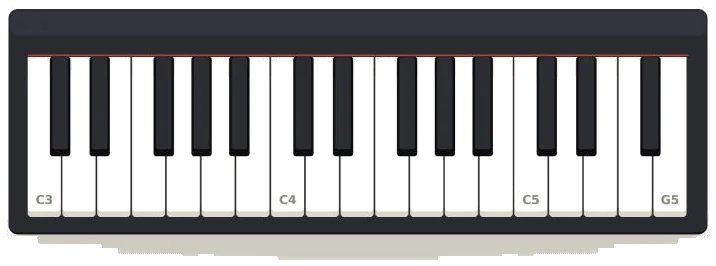
The 32-key virtual piano is an digital instrument that cover a range from C3 to G5. You can play the 32-key virtual piano by clicking or tapping the piano keys either with a mouse or with the finger. Furthermore, you can also play the piano using a computer keyboard, which is helpful for those who would like to play the 32-key virtual piano without using a mouse or whose fingers may not have an ability to click on the virtual piano keys. When clicking a key on the 32-key virtual piano, the 32-key virtual piano will produce sound from that particular key, and the software will display the note of that key within the status bar at the bottom of the 32-key virtual piano.
If using the computer keyboard to play the 32-key virtual piano, the keys on the keyboard map to the piano keys. More specificaly, the bottom row of letters (the letters Z through M) play the lowest notes on the 32-key virtual piano. The middle row of letters (the letters A through the semicolon key) play the next section of notes on the 32-key virtual piano.
How to Use the 32-Key Virtual Piano
The row of numbers on the computer keyboard play the upper-middle range of the 32-key virtual piano. Finally, the top row of letters on the computer keyboard (the letters Q through O) play the highest notes of the 32-key virtual piano. Each of these computer keyboard keys have a label on the 32-key virtual piano that indicates which computer key should be used to play that note on the virtual piano.
To play a sharp key or a black key on the 32-key virtual piano using the computer keyboard, that key must be held and clicked and you must hold and click the Shift key at the same time. For example, clicking and holding the Shift and Z keys will produce the sound of a C sharp key being clicked on the 32-key virtual piano. However, not every white key on the 32-key virtual piano has a sharp key located above that key.
Thus, clicking the Shift key and some letters will not produce any sound. However, when clicking the black keys with a mouse or with the fingers, there is no need to hold or click the Shift key to play those keys. The volume slider controls the loudness of the 32-key virtual piano.
You can set the volume by dragging the slider to the left to decrease the volume of the 32-key virtual piano or by dragging the slider to the right to increase the volume. Prior to playing the 32-key virtual piano, the user should adjust the volume with the volume slider. This is especially true for those who would like to play the 32-key virtual piano in quiet environments.
The Tone selector allows the users of the 32-key virtual piano to change the tone of the sounds that the piano makes. There are three different option for tone: Piano, Organ, and Synth. The Piano tone is a softer sound that quickly decays.
The Organ tone maintains its sound as long as the key is depressed on the 32-key virtual piano. The Synth tone is a brighter, more electronic sounding tone. Each of these tones can be selected at any time during the use of the 32-key virtual piano.
The Sustain checkbox allows the users to change the way the 32-key virtual piano’s keys end when they are released from the keys of the keyboard. If the Sustain checkbox is off, the keys will stop playing shortly after the keys are released from the piano. If the Sustain checkbox is on, the keys will continue to play after they are released; their notes will continue to ring, and the notes will continue to play at the same time as other notes still being played by other keys.
This is useful for playing slow melodies. The Sustain checkbox should of been turned off if the notes begin to sound muddy. Each of the Transpose buttons shifts the sounds of the 32-key virtual piano up or down in 12 semitones at a time.
Each of the buttons will shift the sounds of the piano by one octave. For example, should the melody be difficult to play on the keyboard, the player could use the transpose buttons to shift the sounds to a more comfortable range. The display between the Transpose buttons displays the current offset or shift of the 32-key virtual piano.
The reset button will reset the offset to 0. The Fullscreen button will expand the 32-key virtual piano to take up the entire screen. When in fullscreen mode, the 32-key virtual piano keys will be larger, and it will be easier for the player to click the different keys with a mouse or the screen with a touchscreen device.
The How to Play button will expand the 32-key virtual piano to full screen and display a panel that displays the keyboard layout of the 32-key virtual piano keys, as well as information regarding the use of the Shift key and chords on the 32-key virtual piano. To hear how polyphony works on the 32-key virtual piano, press the A, D, and G keys at the same time. Other ways to experiment with the 32-key virtual piano include turning the Sustain checkbox on while playing a slow phrase.
This will allow listeners to hear how the notes of the 32-key virtual piano continue to play after the keys are released from the piano. Finally, the 32-key virtual piano can play as many notes at once as the hardware and the web browser allows.