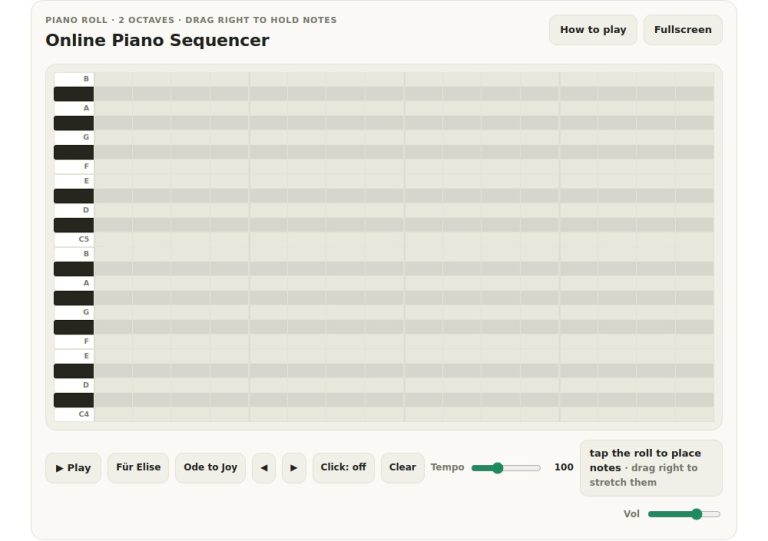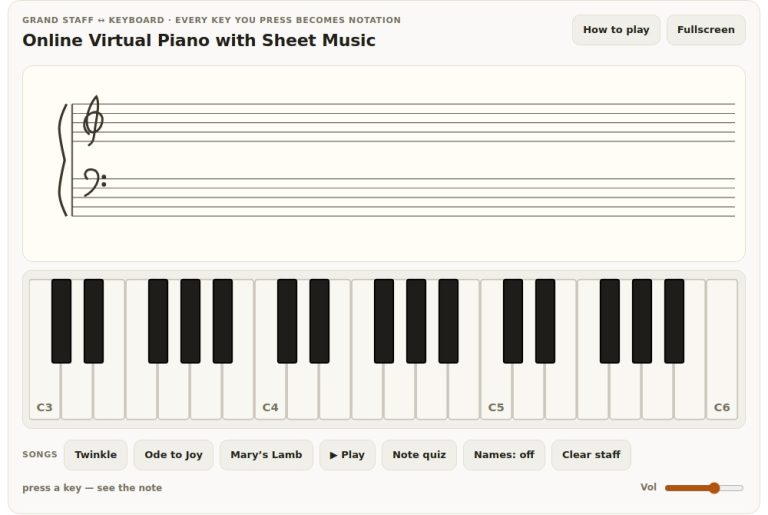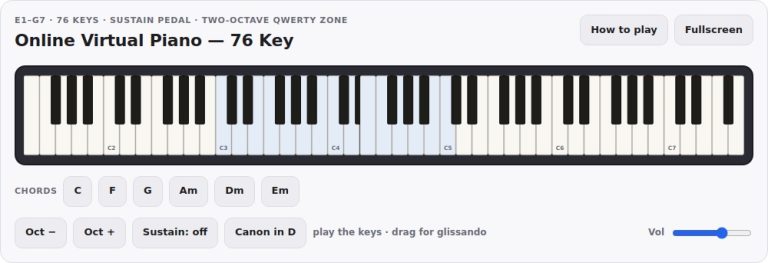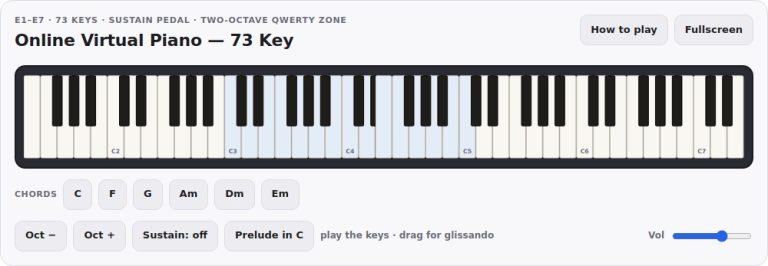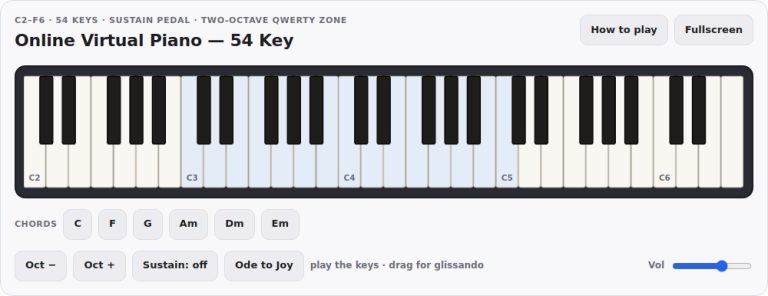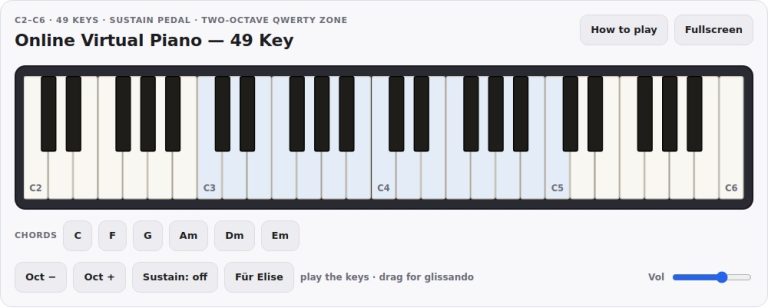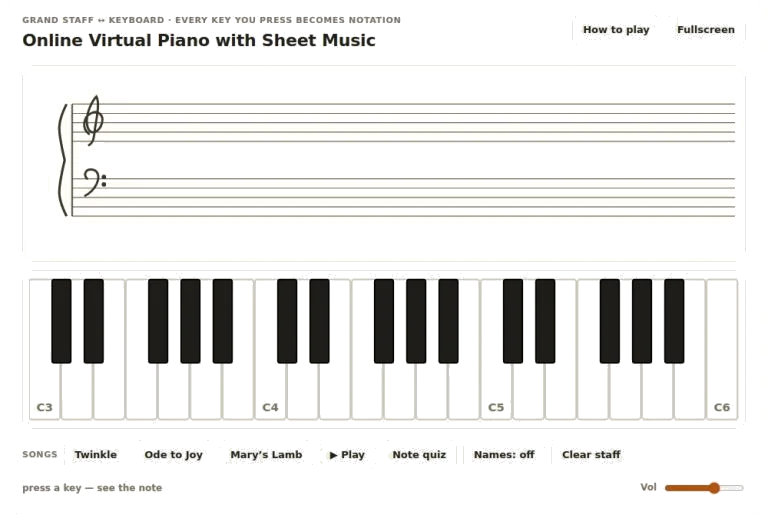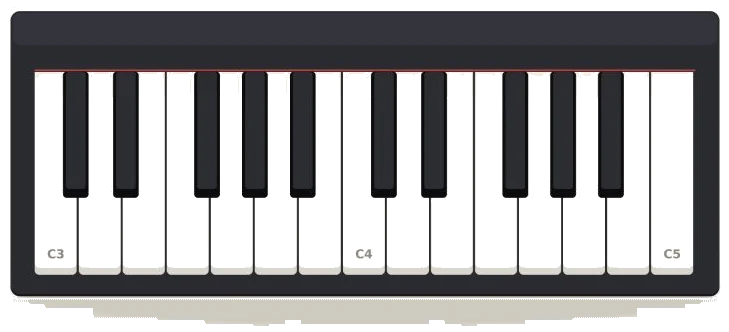
The virtual piano has an range of two octave, from C3 to C5, which is a total of 25 keys. The player can play the virtual piano with a mouse by clicking on the piano keys. It is also possible to play the virtual piano with a computer keyboard.
Using a keyboard allow for both hands to be free while playing the virtual piano, which can aid in fluidly playing. To play with a computer mouse, the player must click a white or black key on the virtual piano. The note will play when the mouse click on a key, and the note will cease play when the key is released.
How to Play the Virtual Piano
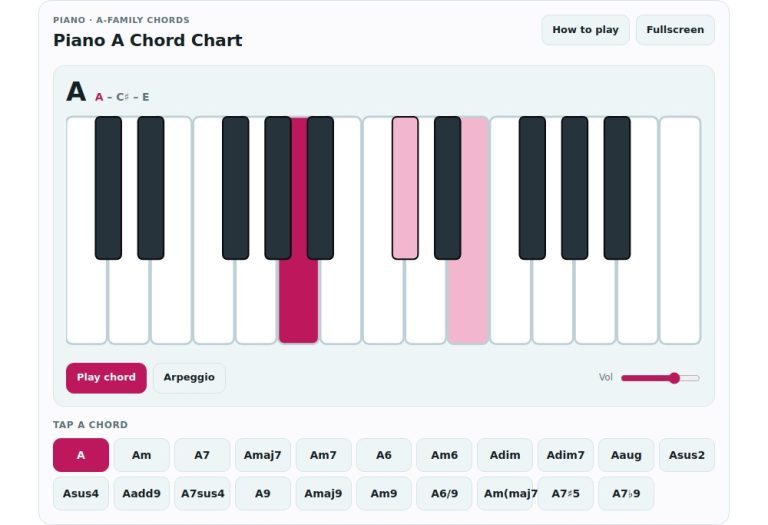
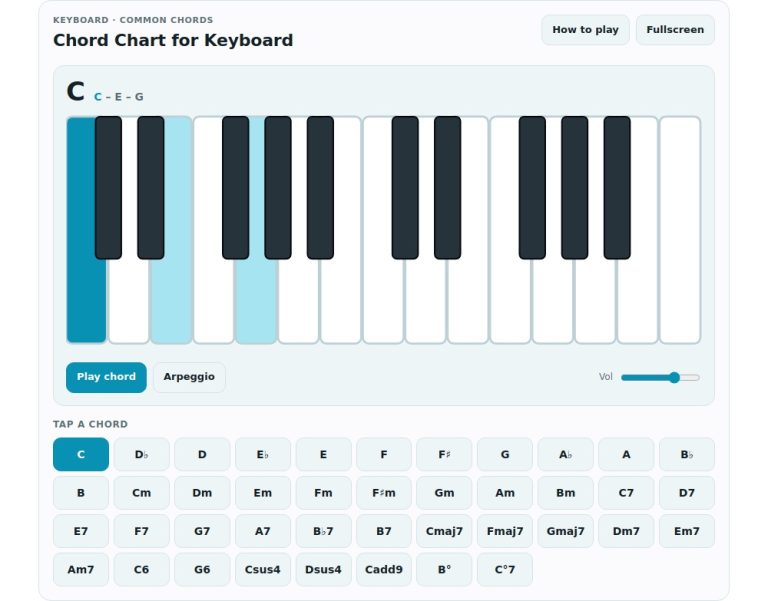
If using a tablet or phone to play the virtual piano, the same touching input as the mouse is used. With touch input, it is also possible to press on multiple virtual piano keys at once to play chords. Pressing on multiple keys at the same time is the way to play chord on the virtual piano.
Rows of keys on the computer keyboard represent the virtual piano keys. The Z, X, C, V, B, N, and M keys are used for the lowest notes on the virtual piano. The A, S, D, F, G, H, J, K, and L keys along with the semicolon key are used for the middle notes of the virtual piano.
The row of number keys from 1 through 0 is used for the upper middle notes of the virtual piano. Finally, the Q, W, E, R, T, Y, U, I, and O keys are used for the highest notes on the virtual piano. There is no need to memorize the position of the keys on the keyboard.
Each virtual piano key with a keyboard key combination has the letter of that key display above the virtual piano key. To play a sharp note, the player must hold the Shift key on the keyboard along with the key of the white key that is located just beneath the desired sharp note on the virtual piano. For instance, holding the Shift key and the Z key will produce a C sharp on the virtual piano.
Holding the Shift key and the A key will produce a C sharp an octave higher on the virtual piano. Holding the Shift key will have no effect on the E or B keys on the keyboard as there is no sharp notes on the virtual piano for those keys. Holding the Shift key and multiple keys at the same time allows the players to play chords on the virtual piano.
The slider next to the term volume allow a person to select how loud the notes are from the virtual piano. If the environment in which a person is using the virtual piano is relatively quiet, they should move the volume slider to a lower position. Similarly, if the sounds from the virtual piano are too loud through the speakers or headphones, the person should move the volume slider to a lower position.
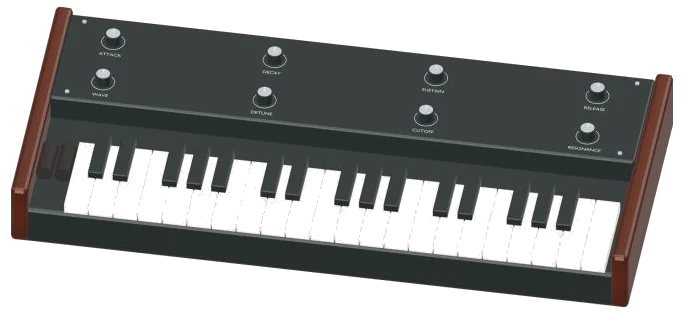
To the right of the volume slider is a selector that allows a person to select three different tones for the virtual piano: Piano, Organ, and Synth. If a person selects the Piano setting, each note will have a soft attack and natural decay of its sound; this is suitable for playing melodies. If a person selects the Organ setting, the notes will continue to sustain and evenly throughout the duration of the note being held; this is useful for playing chords.
If a person selects the Synth setting, the sounds will have a sharper tone than Piano or Organ settings. Each of these settings can be changed at any time, and changing the settings will not interrupt the person operating the virtual piano when playing melodies or songs. The checkbox to the right of the tone selector allows a person to enable the notes to continue to ring after they are released from the keys.
This is useful for playing slow phrases with the virtual piano. This checkbox should be deselected if the selected notes begin to sound muddy. To the right of the sustain checkbox is a control that allows a person to shift the virtual piano up or down in units of 12 semitones.
This may be useful for playing melodies that are difficult for the person due to the positioning of the notes on the keyboard. The display to the right of the control indicates by how many semitones the piano is shifted, and the button to the right of the display allow the control to be returned to its zero setting. The button in the form of a fullscreen allow the virtual piano to be expanded to full screen.
Expanding the virtual piano to full screen increases the size of the keys making them more easier for the person to play. The button in the form of a how-to-play opens a reference panel that display the full keyboard for the virtual piano. This can be useful for those who are just beginning to learn how to play the piano using this virtual piano application.
For instance, one of the chords that can be played is a C major chord, which can be played by simultaneously pressing the keys A, D, and G. Once a person understands the layout of the piano keys, the keyboard will become more intuitive to play.